Visual Commander automates SQL Server Management Studio 21 RTM

Visual Commander is a freemium extension allowing you to automate repetitive tasks in Visual Studio and SSMS.

SSMS 21 RTM allows to install extensions in .vsix format and Visual Commander v3.5.0 supports it:
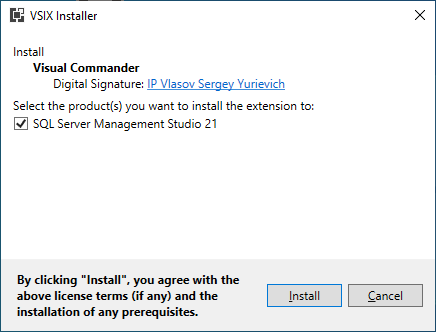
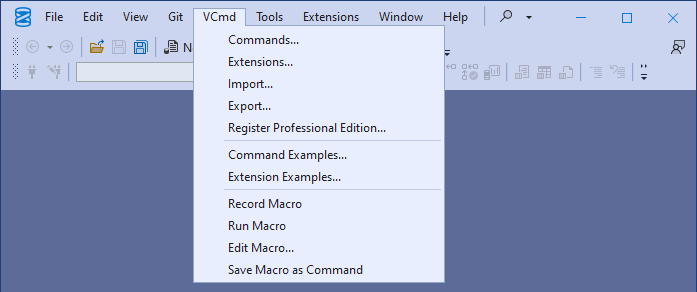
After the installation, in the main SSMS menu Extensions – Customize Menu… uncheck the VCmd entry:

Click Save and Restart.

Visual Commander is now ready to use:
Posted in Vlasov Studio tools | Tagged | Leave a comment

Customizing unreachable code fading in Visual Studio with Visual Commander

Starting with Visual Studio 2022 v17.12, unreachable/unused code is faded out:

I personally find it getting in the way when writing new methods. Unfortunately, there is no options in VS to turn it off or adjust the effect. See also setting dotnet_diagnostic.IDE0051.severity = none does not disable unused private member (IDE0051) fading edit, Fade out unused methods is now being forced and Publics are bright and Privates are dim in Visual Studio 2022 17.12.0 for more discussions.

I’ve created an extension for Visual Commander to modify the effect. VS sets unreachable code opacity to 0.6, the following code sets it to 1 (if you want, you can modify it to any intermediate value):

References:

Microsoft.VisualStudio.ComponentModelHost
Microsoft.VisualStudio.Text.Logic
Microsoft.VisualStudio.Text.UI.Wpf

C#

using EnvDTE;
using EnvDTE80;

using Microsoft.VisualStudio.ComponentModelHost;
using Microsoft.VisualStudio.Text.Classification;

public class E : VisualCommanderExt.IExtension
{
	public void SetSite(EnvDTE80.DTE2 DTE, Microsoft.VisualStudio.Shell.Package package)
	{
        SetClassificationOpacity(package as System.IServiceProvider, "UnnecessaryCodeDiagnostic", 1);
    }

	public void Close()
	{
	}

    private bool SetClassificationOpacity(System.IServiceProvider serviceProvider, string classification, double opacity)
    {
        IComponentModel componentModel = (IComponentModel)serviceProvider.GetService(typeof(SComponentModel));
        IClassificationTypeRegistryService registryService = componentModel.GetService<IClassificationTypeRegistryService>();
        IClassificationFormatMap classificationFormatMap = componentModel.GetService<IClassificationFormatMapService>().GetClassificationFormatMap(category: "text");
        IClassificationType classificationType = registryService.GetClassificationType(classification);
        if (classificationType == null)
            return false;

        var properties = classificationFormatMap.GetExplicitTextProperties(classificationType);
        var newProperties = properties.SetForegroundOpacity(opacity);
        classificationFormatMap.SetExplicitTextProperties(classificationType, newProperties);
        return true;
    }
}

Instead of entering the code, you can also import the extension from Unreachable code opacity.vcmd

Posted in Visual Studio tips, Vlasov Studio tools | Tagged , | 4 Comments

KCommands v2.2 enhances search in the current document

The free KCommands extension for Visual Studio provides a command line to quickly find and replace text without taking your hands off the keyboard.

v2.2 adds support for the new search and replace VS API in the current document and selection scopes.

Download the installer.

Posted in Vlasov Studio tools | Tagged , , | Leave a comment

Automate SQL Server Management Studio 21 with Visual Commander

Visual Commander is a freemium extension allowing you to automate repetitive tasks in Visual Studio and SSMS.

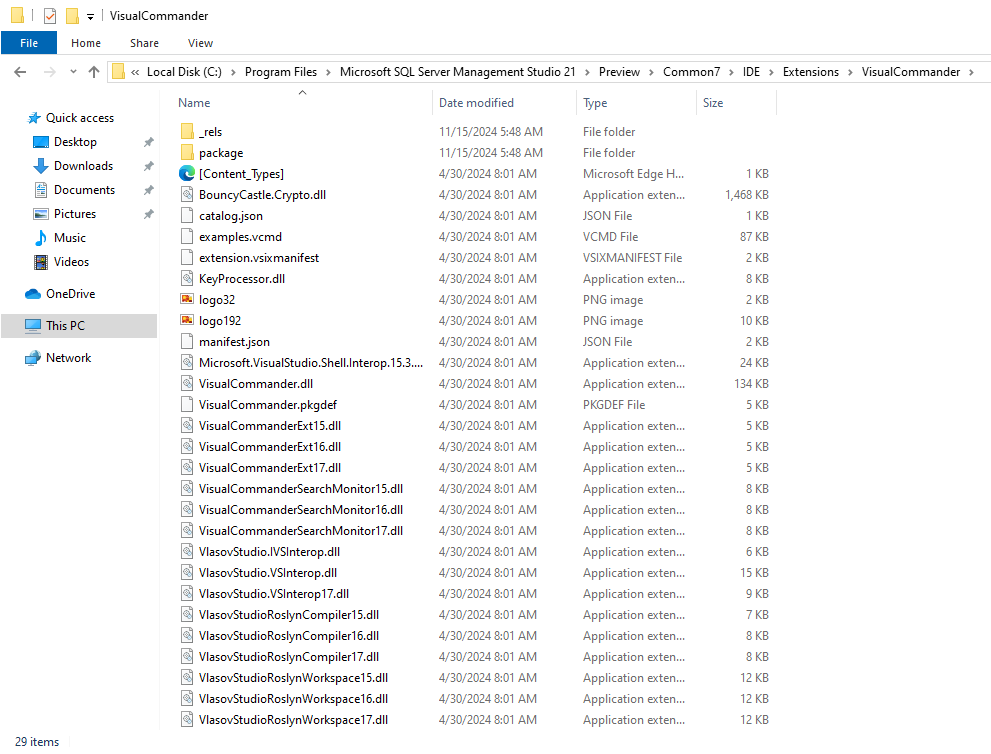
You can install Visual Commander in SQL Server Management Studio 21 Preview unzipping the latest Visual Commander installer to the SSMS IDE extensions directory “C:\Program Files\Microsoft SQL Server Management Studio 21\Preview\Common7\IDE\Extensions”

Then in the main SSMS menu Extensions – Customize Menu… uncheck the VCmd entry:

Click Save and Restart.

Visual Commander is now ready to use:

Posted in Vlasov Studio tools | Tagged | Leave a comment

Shell crash in VSFileHandler.dll

1. Install Microsoft Visual Studio Community 2022 (64-bit) – Preview Version 17.11.0 Preview 2.0.

2. Create an empty (0 bytes) file 1.sln.

3. Open 1.sln location in Windows 10 File Explorer.

4. File Explorer crashes and restarts.

Faulting module name: SHELL32.dll, version: 10.0.19041.3271, time stamp: 0x309f89ae

Exception code: 0xc0000005

Fault offset: 0x00000000000bac16

Faulting application path: C:\WINDOWS\explorer.exe

Faulting module path: C:\WINDOWS\System32\SHELL32.dll

Deleting “C:\Program Files (x86)\Common Files\Microsoft Shared\MSEnv\VSFileHandler.dll” “C:\Program Files (x86)\Common Files\Microsoft Shared\MSEnv\VSFileHandler_64.dll” fixes the problem.

Posted in Uncategorized | Tagged | Leave a comment

How to Colour Code Tabs by Regex in Visual Studio 2022

Richard Moore recorded a video demonstration of the new Visual Studio 2022 v17.5 tab colouring feature, also shows how tabs can be coloured using Tabs Studio:

Posted in Reviews | Tagged | Leave a comment

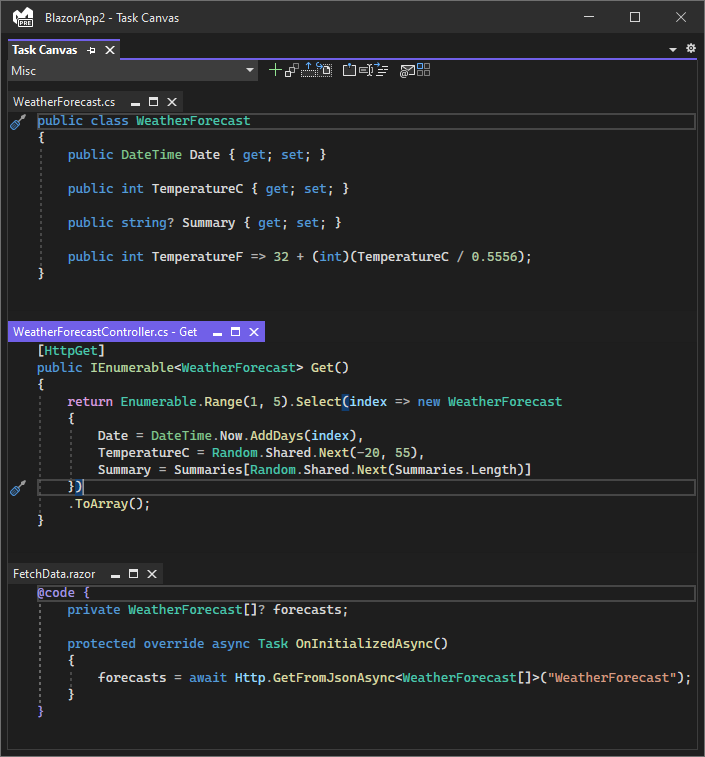
Task Canvas v3 reduces tab switching in Visual Studio 2022

The Task Canvas extension lets you work with multiple code fragments in one Visual Studio window.

v3.0.0 adds support for Visual Studio 2022:

Download the installer.

Posted in Vlasov Studio tools | Tagged , | 2 Comments

Installing a Visual Studio extension for a RootSuffix

Each Visual Studio instance started with the RootSuffix parameter keeps its own set of extensions. If a Visual Studio extension is available from the Visual Studio Marketplace, you can just install it from the standard Manage Extensions dialog. But if you have only a .vsix file you can use vsixinstaller like this:

"C:\Program Files (x86)\Microsoft Visual Studio\Installer\resources\app\ServiceHub\Services\Microsoft.VisualStudio.Setup.Service\vsixinstaller.exe" /appidinstallpath:"C:\Program Files (x86)\Microsoft Visual Studio\2019\Community\Common7\IDE\devenv.exe" /skuName:Community /skuVersion:16.11.31624.102 /appidname:"Microsoft Visual Studio Community 2019"  /culture:"en-US"  /noep  /rootSuffix:"Demo" TabsStudioVS2019.vsix

Note that example parameters are for the Community edition.

And to find correct skuVersion you can run

"%ProgramFiles(x86)%\Microsoft Visual Studio\Installer\vswhere.exe"
and copy installationVersion property value from its output.

Posted in Visual Studio tips | Leave a comment

When you don’t limit INetCache size

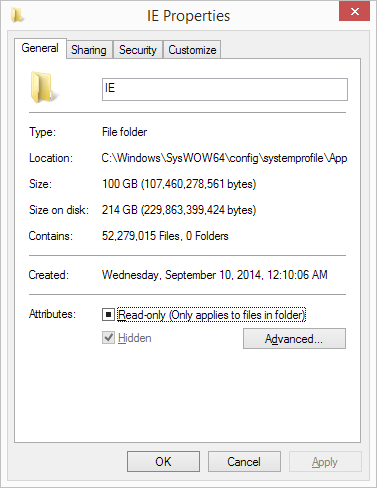
Investigated why daily Visual Studio 2019 update hangs on my machine and found this:

I’ve never seen 52 million files in one folder before.

Check yours c:\Windows\SysWOW64\config\systemprofile\AppData\Local\Microsoft\Windows\INetCache\IE (requires admin rights).

Posted in Uncategorized | Leave a comment

KCommands v2 adds Vim like commands to quickly find and replace text in Visual Studio 2022

The free KCommands extension for Visual Studio provides a command line to quickly find and replace text without taking your hands off the keyboard:

v2.0.0 adds support for Visual Studio 2022.

Download the installer.

Posted in Vlasov Studio tools | Tagged , | Leave a comment