Visual Commander adds macro recording and playback for the text editor in Visual Studio 2012/2013

Visual Commander is a free extension for Visual Studio 2010+ allowing you to automate repetitive tasks in the IDE. You can reuse existing Visual Studio macros from previous versions of the IDE and create new commands and extensions in C# or VB with full access to the Visual Studio automation model and .NET framework.

Visual Commander v1.2 adds the ability to record your editing operations in the Visual Studio code editor and replay them multiple times. Just select the Record Macro command, perform editing on a sample text block and select the Stop Macro Recording command (or press the same keyboard shortcut you used to start recording, typically Ctrl+Shift+R). Now you can replay the macro with the Run Macro command or a keyboard shortcut (typically Ctrl+Shift+P).

A macro can be recorded in VB or C# and you can edit the recorded commands (for example, to add repetition or conditional logic):

Sample macro code in VB

Sample macro code in VB

Having access to the macro code, you can copy it to a new Visual Commander command if you plan to use it regularly later. Currently only editing operations are recorded (typed characters, cursor movements and copy/paste/delete commands). I’m collecting feedback on what additional operations should be automatically recorded. Many use Visual Studio find functionality for editing, it is not currently recorded, but as a simple workaround you can manually add the call to the DTE.Find.Execute() method when needed.

Download the installer.

Posted in Vlasov Studio tools | Tagged , , | 3 Comments

Format C++ code intelligently in Visual Studio with clang-format

Two month ago in GoingNative 2013 Chandler Carruth demonstrated a new tool clang-format to automatically format C++ code. The whole talk is excellent, but if you just interested in formatting watch between 24 and 32 minutes. For Visual Studio users there is now a LLVM Windows snapshot build available and the clang-format plugin for Visual Studio, see LLVM Snapshot Builds.

To demonstrate how clang-format works, on a Visual Studio 2012 machine I installed the LLVM toolchain, clang-format plugin and created a default MFC application. Below are some examples how clang-format improved the default generated code:

Original:
CPropertiesWnd::CPropertiesWnd()
{
	m_nComboHeight = 0;
}

CPropertiesWnd::~CPropertiesWnd()
{
}
clang-format:
CPropertiesWnd::CPropertiesWnd() { m_nComboHeight = 0; }

CPropertiesWnd::~CPropertiesWnd() {}
Original:
void CPropertiesWnd::AdjustLayout()
{
	if (GetSafeHwnd () == NULL || (AfxGetMainWnd() != NULL && AfxGetMainWnd()->IsIconic()))
	{
		return;
	}

	CRect rectClient;
	GetClientRect(rectClient);

	int cyTlb = m_wndToolBar.CalcFixedLayout(FALSE, TRUE).cy;

	m_wndObjectCombo.SetWindowPos(NULL, rectClient.left, rectClient.top, rectClient.Width(), m_nComboHeight, SWP_NOACTIVATE | SWP_NOZORDER);
	m_wndToolBar.SetWindowPos(NULL, rectClient.left, rectClient.top + m_nComboHeight, rectClient.Width(), cyTlb, SWP_NOACTIVATE | SWP_NOZORDER);
	m_wndPropList.SetWindowPos(NULL, rectClient.left, rectClient.top + m_nComboHeight + cyTlb, rectClient.Width(), rectClient.Height() -(m_nComboHeight+cyTlb), SWP_NOACTIVATE | SWP_NOZORDER);
}
clang-format:
void CPropertiesWnd::AdjustLayout() {
  if (GetSafeHwnd() == NULL ||
      (AfxGetMainWnd() != NULL && AfxGetMainWnd()->IsIconic())) {
    return;
  }

  CRect rectClient;
  GetClientRect(rectClient);

  int cyTlb = m_wndToolBar.CalcFixedLayout(FALSE, TRUE).cy;

  m_wndObjectCombo.SetWindowPos(NULL, rectClient.left, rectClient.top,
                                rectClient.Width(), m_nComboHeight,
                                SWP_NOACTIVATE | SWP_NOZORDER);
  m_wndToolBar.SetWindowPos(NULL, rectClient.left,
                            rectClient.top + m_nComboHeight, rectClient.Width(),
                            cyTlb, SWP_NOACTIVATE | SWP_NOZORDER);
  m_wndPropList.SetWindowPos(
      NULL, rectClient.left, rectClient.top + m_nComboHeight + cyTlb,
      rectClient.Width(), rectClient.Height() - (m_nComboHeight + cyTlb),
      SWP_NOACTIVATE | SWP_NOZORDER);
}
Original:
m_wndToolBar.SetPaneStyle(m_wndToolBar.GetPaneStyle() & ~(CBRS_GRIPPER | CBRS_SIZE_DYNAMIC | CBRS_BORDER_TOP | CBRS_BORDER_BOTTOM | CBRS_BORDER_LEFT | CBRS_BORDER_RIGHT));
clang-format:
  m_wndToolBar.SetPaneStyle(m_wndToolBar.GetPaneStyle() &
                            ~(CBRS_GRIPPER | CBRS_SIZE_DYNAMIC |
                              CBRS_BORDER_TOP | CBRS_BORDER_BOTTOM |
                              CBRS_BORDER_LEFT | CBRS_BORDER_RIGHT));

clang-format is also highly customizable for your particular coding style, see Clang-Format Style Options. You can create a .clang-format or _clang-format file with options like IndentWidth: 4, BreakBeforeBraces: Allman and place this file to the source file directory or one of its parent directories.

The Tools.ClangFormat command from the extensions formats the cursor line when no text is selected or the selected lines. In my experience it works best when the whole document is selected. I want to investigate how to format the whole document without manually selecting it first. I also want to run formatting in other Visual Studio versions, primarily in Visual Studio 2008, Visual Studio 2010 and Visual Studio 2013.

If you use Visual Studio 2012, you can try clang-format right now.

Update: The corresponding Reddit discussion thread for this article describes how to run the ClangFormat extension in Visual Studio 2013 if you don’t want to wait for an official update.

Update 2 (November 27, 2013): Manuel Klimek has added support for VS 2010 and VS 2013 to the ClangFormat extension. You can download it from the official page.


 

Organize Visual Studio tabs with Tabs Studio add-in

Posted in Reviews | Tagged , , , | 2 Comments

Visual Studio startup options – Load last loaded solution

If you work mostly on a single solution, selecting the Load last loaded solution option for Visual Studio startup configuration will speed up and simplify your Visual Studio launch:

The "Load last loaded solution" option for Visual Studio startup

The “Load last loaded solution” option for Visual Studio startup


Organize Visual Studio tabs with Tabs Studio add-in

Posted in Visual Studio tips | 1 Comment

Hide class info in Visual Studio Solution Explorer

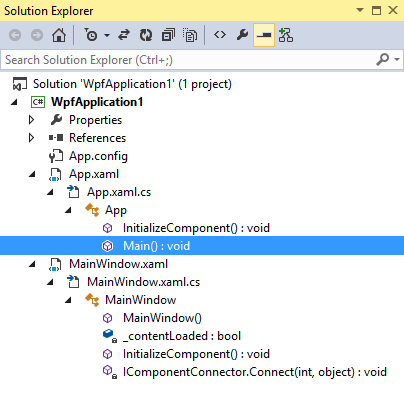
Solution Navigator from the Visual Studio 2010 Productivity Power Tools first merged Solution Explorer and Class View. It added the ability to expand code files to navigate to its classes, expand classes to navigate to their members, and so on. In Visual Studio 2012 and Visual Studio 2012 this functionality became a standard part of Solution Explorer:

Classes and methods in Visual Studio 2013 Solution Explorer

Classes and methods in Visual Studio 2013 Solution Explorer

Still some people never use the Solution Explorer to navigate the code symbols and methods. In this case expansion arrows on code files only create distraction in the Solution Explorer window. There is no option to control the availability of file expansion, but there is the UseSolutionNavigatorGraphProvider dword registry value (discovered by Julien Lebosquain) that you can set to 0 to disable class view in Solution Explorer. The registry key for this value is HKEY_CURRENT_USER\Software\Microsoft\VisualStudio\11.0 for Visual Studio 2012 and HKEY_CURRENT_USER\Software\Microsoft\VisualStudio\12.0 for Visual Studio 2013 correspondingly:

Folders and files only in Visual Studio 2013 Solution Explorer

Folders and files only in Visual Studio 2013 Solution Explorer

Now you can select the better view for yourself.

Update: See Hide class info in Solution Explorer command for Visual Commander that works with Visual Studio 2012/2013/2015/2017.


Organize Visual Studio tabs with Tabs Studio add-in

Posted in Visual Studio tips | Tagged , , , | 8 Comments

Add images to your code in Visual Studio with the ImageComments extension

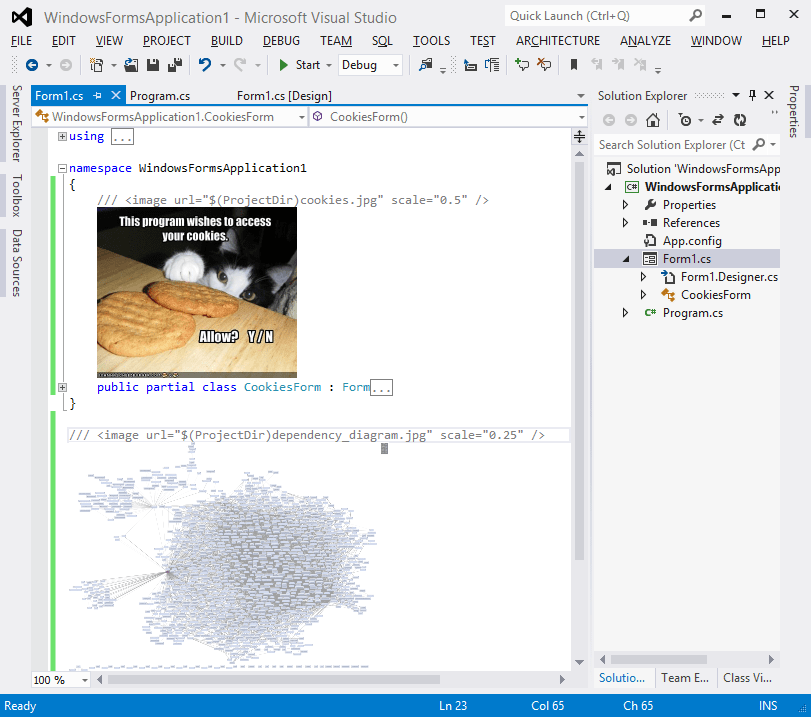
ImageComments extension by Luke McQuade lets you show images among code in Visual Studio 2010/2012:

Images in code (Visual Studio 2012 with ImageComments)

Images in code (Visual Studio 2012 with ImageComments)

To add an image you add the specially formatted image comment to your code, like /// <image url=”X:\Path\To\Image.ext” scale=”Y” />. After that the image is displayed by ImageComments right after the comment. You can easily share images with your team by committing them to the repository with the code file and using $(ProjectDir) or $(SolutionDir) macros in the image url to specify relative path for the image. The scale parameter lets you easily change original image size.

While there are some known issues (plus I’d add that images are visible even after the corresponding block is collapsed), the extension adds very useful functionality in a very easy to use manner.

The free ImageComments extension currently supports Visual Studio 2010 and Visual Studio 2012. You can download it, read documentation and see the source code on github.


Organize Visual Studio tabs with Tabs Studio add-in

Posted in Reviews | Tagged , , | 1 Comment

Tabs Studio v3.1.5 adds support for multipart names in the title grouping regex

Tabs Studio is a Visual Studio and SSMS add-in empowering you to work comfortably with any number of open documents.

v3.1.5 adds support for multipart names in the title grouping regex. See the full what’s new list.

Download the installer.

Posted in Vlasov Studio tools | Tagged , , , , | Leave a comment

Favorite Documents v1.7 adds support for Team Explorer

Favorite Documents extension lets you create links to frequently used code files and then quickly open them as a group or individually in Visual Studio 2010+.

v1.7 adds support for Team Explorer (Integrated Shell) and Source Control Explorer integration for Visual Studio 2012/2013.

Download the installer.

Posted in Vlasov Studio tools | Tagged , , , | 2 Comments

Fake IE10 to install Visual Studio 2013

Visual Studio 2013 requires Internet Explorer 10. If you try to install it on Windows 7 with IE8 you get the following error “This version of Visual Studio requires Internet Explorer 10”:

Visual Studio 2013 requires Internet Explorer 10

Visual Studio 2013 requires Internet Explorer 10

This prevents use of VS 2013 in many organizations where corporate policy forbids IE10. In practice, the VS 2013 installer just checks one registry value for IE10 presence, Visual Studio 2013 IDE doesn’t check for IE10 and at the moment I’m not aware of a single VS scenario that fails without IE10. Thus we can install and use VS 2013 without IE10 with a simple registry modification.

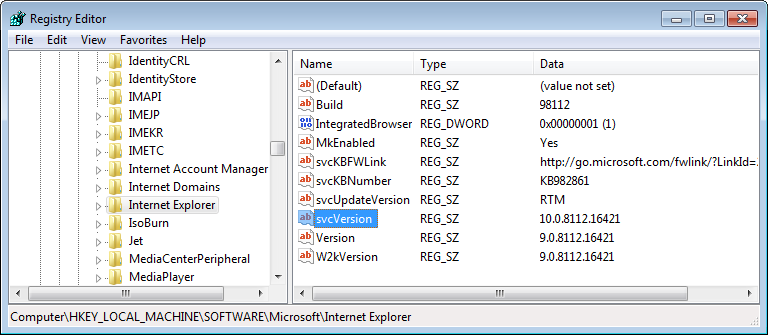
The value that the VS 2013 installer checks is svcVersion in the HKEY_LOCAL_MACHINE\SOFTWARE\Microsoft\Internet Explorer key on 32-bit Windows and
HKEY_LOCAL_MACHINE\SOFTWARE\Wow6432Node\Microsoft\Internet Explorer on 64-bit Windows (originally described by Jimmy). Any value >= 10.0.0.0 makes the installer happy.

With IE8 installed the svcVersion value is not present and you can easily add it (and later remove) with the following reg files: VS2013_FakeIE10.reg, VS2013_DeleteFakeIE10.reg. With IE9 installed the svcVersion value is present, you need to modify it before the VS installation and then revert back. The simplest modification is to change the major version from 9 to 10:

Changing IE9 to IE10 for VS 2013 installer

Changing IE9 to IE10 for VS 2013 installer

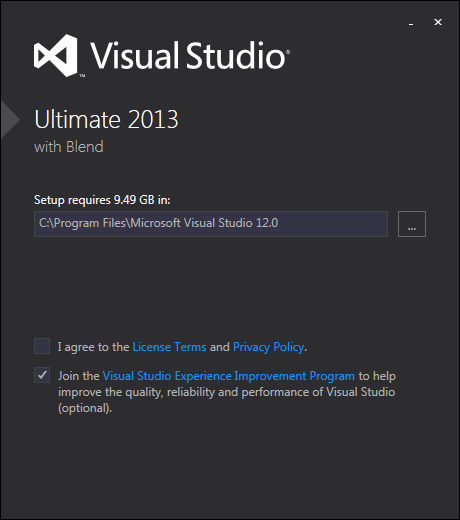
The VS 2013 installer checks for IE10 at the very beginning. So, the registry modification timing is following: change registry, run the VS 2013 installer, when the first setup dialog appears (see the following screenshot) revert registry changes. In this case the IE10 version string is present for only about a minute in the registry.

The first VS 2013 setup dialog after IE10 registry check

The first VS 2013 setup dialog after IE10 registry check

Wait for the installer to complete and run Visual Studio!

Update: Steve Teixeira from the Visual Studio Team listed VS 2013 components that require IE10 and promised to investigate support for customers installing and running VS 2013 on machines without IE10.

Update 2: Visual Studio 2013 installers were updated to enable VS 2013 to be installed on Windows 7 machines running IE8 or IE9. See details here.


Organize Visual Studio tabs with Tabs Studio add-in

Posted in Uncategorized | Tagged | 9 Comments

Visual Time Spent v1.0.8 adds support for Visual Studio 2013

Visual Time Spent automatically tracks your time spent working on solutions, projects and documents in Visual Studio IDE. It allows you to generate reports to see overall time spent and what activities took most time.

v1.0.8 adds support for Visual Studio 2013 and the ability to run without .NET 3.5 installed in Visual Studio 2010+.

Download the installer.

Posted in Vlasov Studio tools | Tagged , | Leave a comment

Hide Sign in and Feedback buttons in the Visual Studio 2013 main window

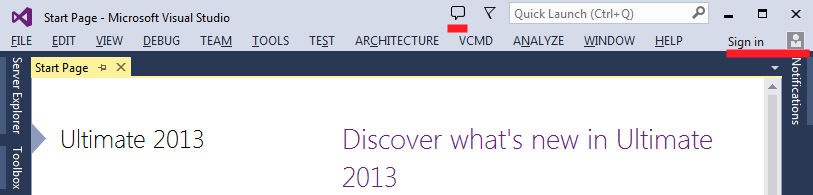
Visual Studio 2013 adds new elements to the main window such as feedback, notifications and sign in buttons:

Feedback and Sign in buttons in the main Visual Studio 2013 window

Feedback and Sign in buttons in the main Visual Studio 2013 window

If you don’t use your account to sign in, then the corresponding button becomes completely useless. Sending feedback for VS is a very rare activity and also doesn’t justify an always visible control (having Feedback commands in the Help menu is good enough). So it would be nice to hide these buttons by default.

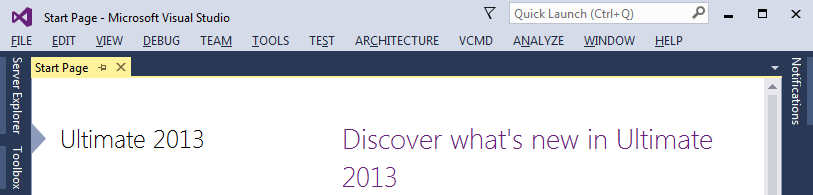
As Visual Studio 2013 doesn’t have any built-in settings to control visibility of these buttons, one solution is to write an extension to directly modify corresponding WPF controls in the main Visual Studio window. WPF controls for the buttons can be discovered with Snoop. Using Visual Commander I’ve created the Hide Sign in and Feedback buttons in Visual Studio 2013 extension that automatically hides the buttons:

Hidden Feedback and Sign in buttons in the main Visual Studio 2013 window

Hidden Feedback and Sign in buttons in the main Visual Studio 2013 window

As you can see in the code, updating the buttons every second is not elegant, but as the Feedback button is created asynchronously and sometimes recreated (e.g. returning from the Visual Studio full screen mode) it is the simplest (and robust) solution. You can easily tweak the code e.g. to hide only one button or change the update interval. One more feature that can be added is to hide the Notifications button when there are no notifications, but it will require monitoring for notification arrival.

Download vcmd extension for Visual Commander to hide Sign in and Feedback buttons.

Update: Alternatively you can delete corresponding keys from HKEY_CURRENT_USER\Software\Microsoft\VisualStudio\12.0_Config\MainWindowFrameControls.

Posted in Vlasov Studio tools | Tagged , | 1 Comment