By default, when you expand or collapse a method or a code region in Visual Studio, this action is pushed on the undo stack. It ruins any normal code editing cycle – you do text changes, browse code doing folding/unfolding and now your undo stack is full of unrelated outlining operations, need to press Ctrl+Z multiple times to undo a change.
I’ve created the new Disable Outlining Undo extension that excludes expanding and collapsing operations from recording to the undo/redo stack in Visual Studio 2017/2019.
The Task Canvas extension lets you work with multiple code fragments without switching tabs.
v2.0.0 adds the “Move to Other Task” context menu command, removes horizontal and vertical scrollbars from code blocks. Full support for Visual Studio 2019 is blocked by the following issue: CreateProjectionBuffer no longer works in VS 2019.
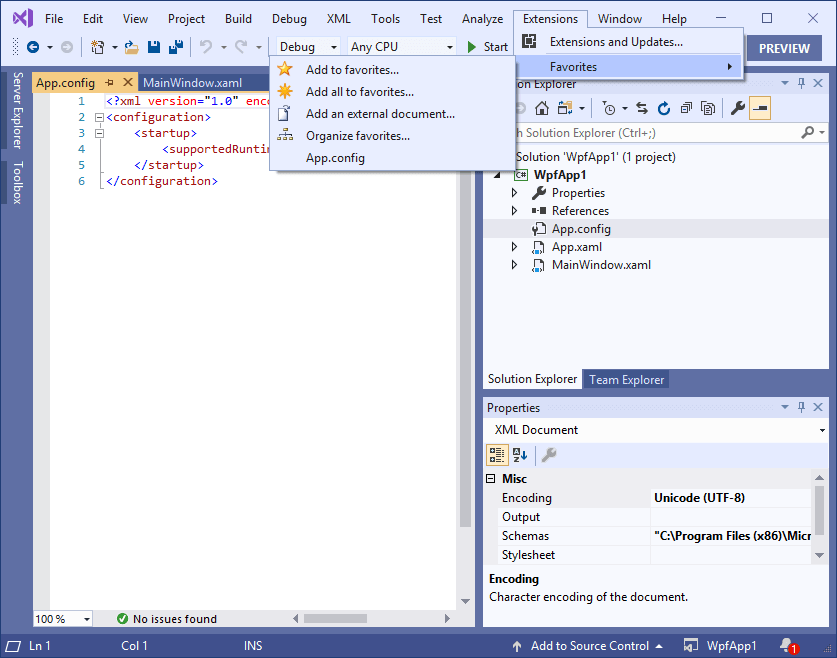
Favorite Documents extension lets you create links to frequently used code files and then quickly open them as a group or individually in Visual Studio IDE.
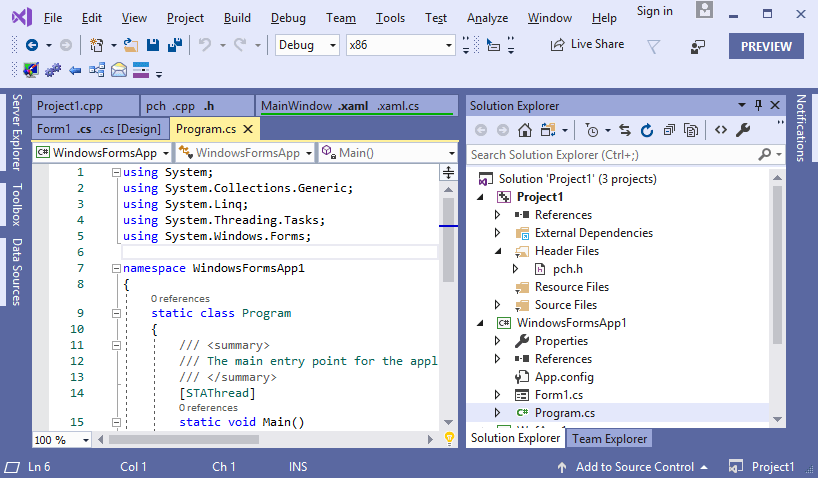
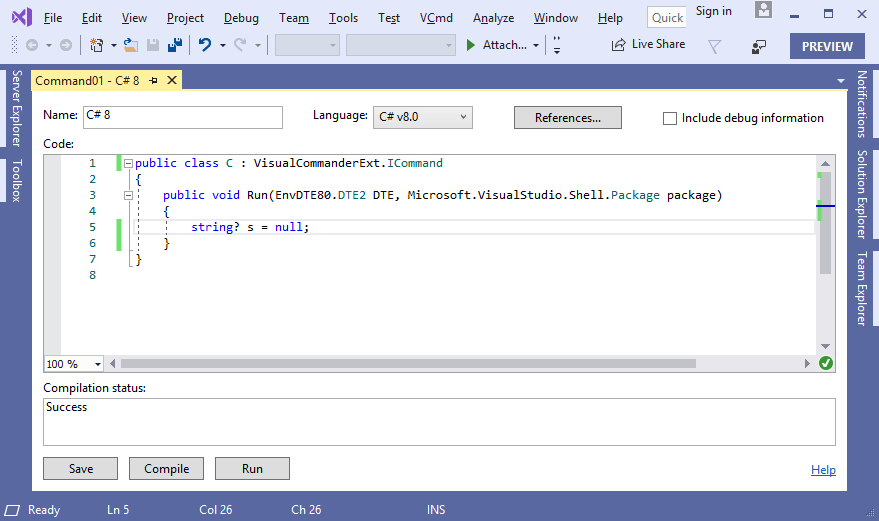
v2.4.0 adds support for Visual Studio 2019 Preview 2.2 and stops support for Visual Studio 2012/2013:
Code Bubbles research in 2010 demonstrated how seeing a sizeable number of functions concurrently can significantly reduce a task completion time by minimizing navigation interactions, offloading limited working memory, comparing and understanding functions together, seeing calling relationships, improving ability to multi-task and to recover from interruptions (paper).
Code Bubbles for Eclipse presented compact function-based views of the code that are displayed in bubbles on a virtually infinite work space. Bubbles can be grouped and connected by a directed arc:
In 2011 Microsoft released Debugger Canvas for Visual Studio Ultimate 2010 augmenting debugging sessions. It pulls together the code you’re exploring onto a single pan-and-zoom display. As you hit breakpoints or step into code, Debugger Canvas shows just the methods that you’re debugging, with call lines and local variables, to help you see the bigger picture:
In 2014 Josh Varty and Amadeus Wieczorek demonstrated Code Connect for Visual Studio 2013/2015. Code Connect displays code on a function-by-function basis and visualizes the call stack showing full function implementations. It still uses an infinite work space, but automatically fills available screen space with related function definitions as you navigate code resulting in nicely laid out code tiles:
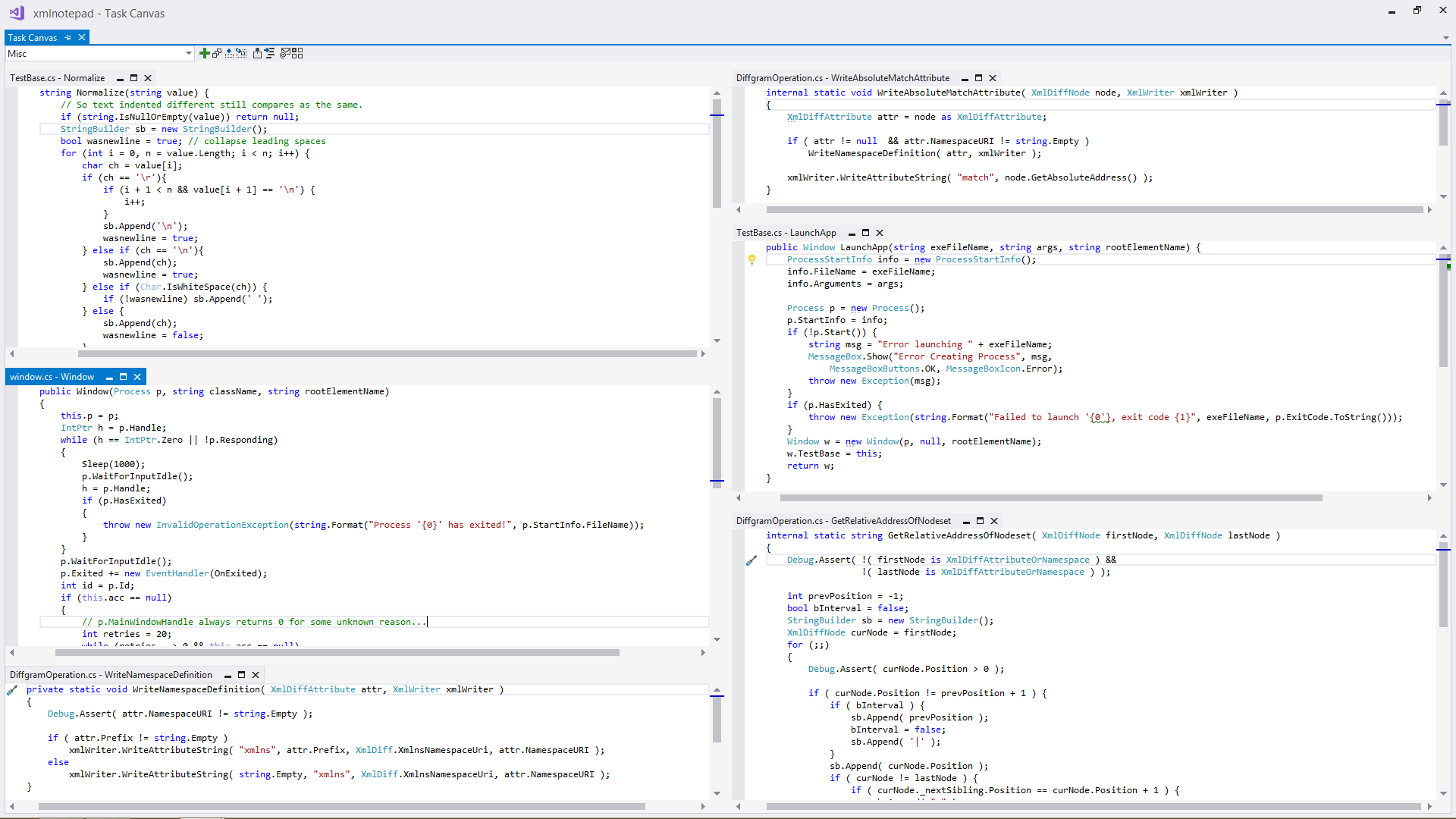
In 2016 I personally became tired of switching back and forth between tabs and jumping from place to place within a file. I wanted to see all code fragments I’m currently working on at once. In May 2016 I released Task Canvas for Visual Studio 2015/2017.
As I wanted to see all fragments at once, I limited the canvas to the window size – no need for workspace panning. To view all code it is also important to maximally use available screen space, that can be achieved only by automatically tiling code fragments in several columns considering each block size:
This approach still allows occasional manual adjustments to change order of blocks by dragging and change block height by clicking Maximize or Minimize. A maximized block uses more space reducing other blocks to minimized state with only 5 visible lines. When several blocks are maximized, they equally share available space.
I recognize standard document tabs as more convenient to write brand new code, change file structure, read large amounts of code and having better technical integration with the IDE. It is easy to go from a code fragment to the source document and back using corresponding Task Canvas commands:
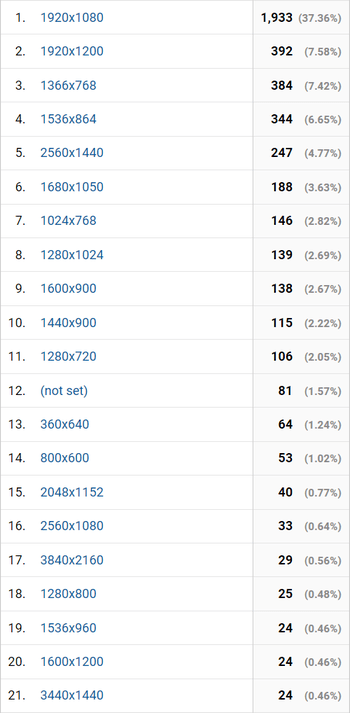
A valid concern is showing multiple code fragments requires a larger monitor? From my developer tools site web logs, the most popular display resolution this year is 1920*1080:
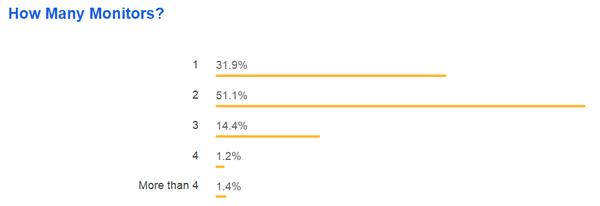
The original Code Bubbles study used a single monitor with 1920*1200 resolution, the Task Canvas screencast above also used 1920*1200 resolution. So, two common 1920*1080 monitors should be enough to benefit from seeing multiple code locations at once. (Of course, larger screens will make work even more comfortable.)
Besides Visual Studio and Eclipse, there are many other IDEs in use today (source):
All rooted in a file-based editor. I couldn’t find a code fragments supporting extension for any of them. Well, we can see it as another open opportunity to increase developer productivity 🙂
The Smooth Caret extension adds smooth caret movement animation for text editors in Visual Studio. It looks similar to the smooth typing feature in Microsoft Office 2013.
v2.0.0 adds support for Visual Studio 2019 and stops support for Visual Studio 2012/2013.
Visual Time Spent automatically tracks your time spent working on solutions, projects and documents in Visual Studio IDE. It allows you to generate reports to see overall time spent and what activities took most time.
v1.4.0 adds support for Visual Studio 2019 Preview 1.1 and stops support for Visual Studio 2010/2012/2013.
The Task Canvas extension lets you edit multiple methods from different classes in one window and quickly switch between document groups.
v 1.9.0 adds the “Go to Associated Task” context menu command to go from a document to the canvas, adds a confirmation dialog before closing a note and improves layout correctness for multiple large code blocks.



 Making Visual Studio perfect