Visual Studio code formatting options per solution, directory and file

Visual Studio supports only one global set of code formatting options. If you work on several projects/solutions with different formatting styles, you need to change global text formatting options each time you change projects:

Code formatting options in Visual Studio 2013

Code formatting options in Visual Studio 2013

If you work on a small fixed number of projects, you can automate options change with a macro or Visual Commander command, see Setting Indent Width and Tabs/Spaces Quickly Using Macros by Alexander Groß:

Dim textEditor As Properties
textEditor = DTE.Properties("TextEditor", "AllLanguages")
textEditor.Item("IndentStyle").Value = vsIndentStyle.vsIndentStyleSmart
textEditor.Item("TabSize").Value = 4
textEditor.Item("IndentSize").Value = 2
textEditor.Item("InsertTabs").Value = False

The new Rebracer extension by Schabse S. Laks can store code formatting options in a separate file in the solution directory and automatically load these options with the solution. If you want to set solution specific formatting options, just change global Visual Studio options and Rebracer will remember them for your solution. You can store the Rebracer.xml file with saved options in your source control repository along with the solution and share with others:

Saved code formatting options by Rebracer in Visual Studio 2013

Saved code formatting options by Rebracer in Visual Studio 2013

You can download Rebracer from Visual Studio Gallery. Source code and additional FAQ are available on GitHub.

EditorConfig Visual Studio extension supports per directory and per file code formatting settings based on the EditorConfig standard. When you open or activate a document in Visual Studio, EditorConfig sets Visual Studio text formatting options based on the .editorconfig file stored with your source files:

; Top-most EditorConfig file
root = true

; 4-column space indentation
[*.cs]
indent_style = space
indent_size = 4

Only indent_style, indent_size, tab_width and end_of_line text formation options are supported. Unfortunately, the current version 0.3.1 on Visual Studio Gallery doesn’t work. You can download patched v0.4.1 for Visual Studio 2013 here (I downloaded it here and removed dependency on MPF 11.0 from extension.vsixmanifest).


Organize Visual Studio tabs with Tabs Studio add-in

Posted in Reviews | Tagged , | Leave a comment

Visual Commander v1.5 adds navigation to relevant code from compiler errors

Visual Commander is a freemium extension for Visual Studio 2010+ allowing you to automate repetitive tasks in the IDE.

Visual Commander Professional v1.5 adds the ability to double-click on a compiler error in the Compilation status box and navigate directly to the relevant code (line and column of the error):

Navigation to relevant code from a compiler error

Navigation to relevant code from a compiler error

Visual Commander v1.5 also adds recording for the Edit.FormatSelection and Edit.FormatDocument commands, improves alignment for displayed command bindings in the main VCmd menu.

Download the installer.

Posted in Vlasov Studio tools | Tagged , , , | Leave a comment

Show all mnemonics in Visual Studio .rc dialog designer for native C++ code

“Normally, keyboard users move the input focus from one control to another in a dialog box with the TAB and ARROW keys. However, you can define an access key (a mnemonic or easy-to-remember name) that allows users to choose a control by pressing a single key.”

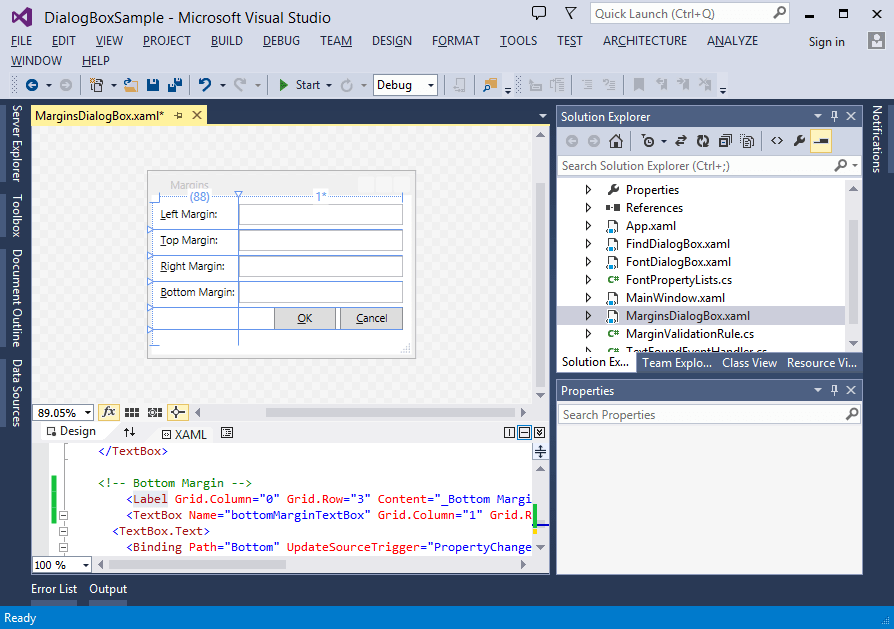
For WPF dialogs you add underscore (_) in front of the letter you want as the access key for a control and you can display all mnemonics in the designer (an underline appears in the displayed caption to indicate the access key) pressing the Alt key:

WPF dialog designer in Visual Studio 2013

WPF dialog designer in Visual Studio 2013

For Windows Forms dialogs you add ampersand (&) in front of the letter you want as the access key and the designer always shows all assigned mnemonics:

Windows Forms dialog designer in Visual Studio 2013

Windows Forms dialog designer in Visual Studio 2013

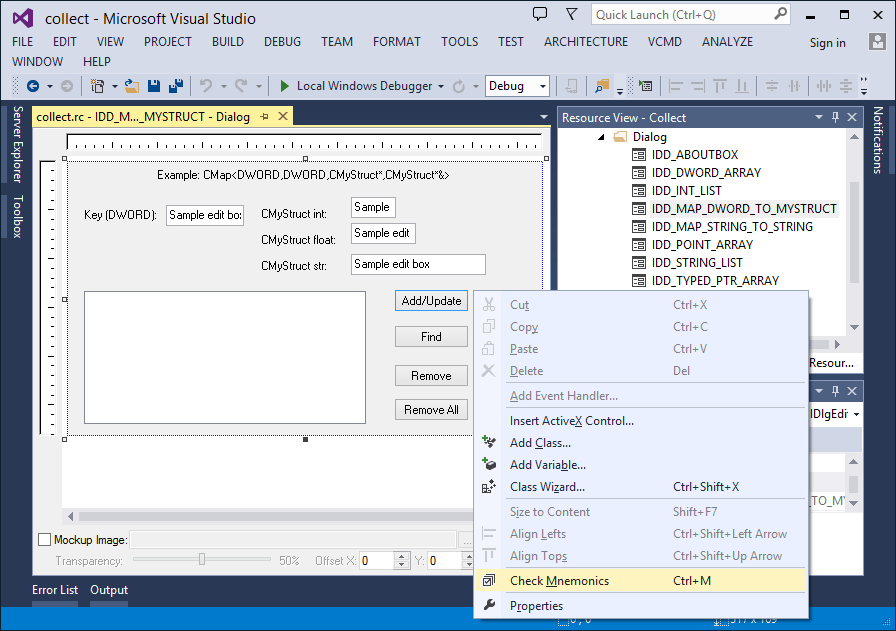
For native C++ .rc dialogs you add ampersand (&), but there is no way to show all assigned mnemonics. Only the Check Mnemonics command is available to check for duplicate access keys:

Check Mnemonics command for native dialog designer in Visual Studio 2013

Check Mnemonics command for native dialog designer in Visual Studio 2013

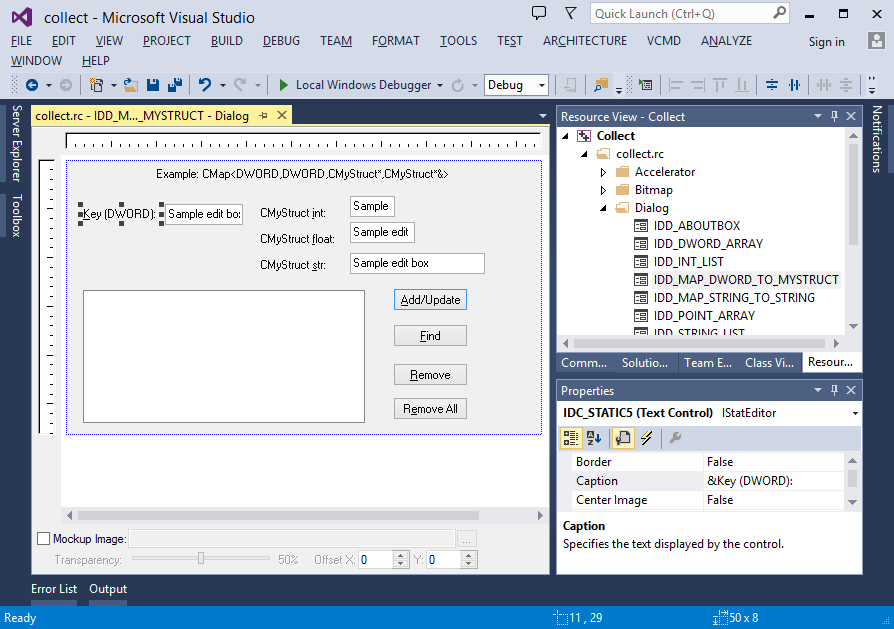
The Show mnemonics command for Visual Commander displays all mnemonics for a native dialog in Visual Studio 2010/2012/2013 designer:

All mnemonics displayed for native dialog designer in Visual Studio 2013

All mnemonics displayed for native dialog designer in Visual Studio 2013

You can download the Show mnemonics command as a .vcmd file and quickly import to Visual Commander. (Thanks to Sven Ritter for the original idea of activating mnemonics with a WM_UPDATEUISTATE message.)

Posted in Vlasov Studio tools | Tagged , , , , | Leave a comment

Visual Commander v1.4 enables commands reordering and adds the Save Macro command

Visual Commander is a freemium extension for Visual Studio 2010+ allowing you to automate repetitive tasks in the IDE.

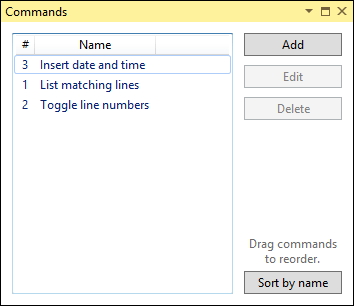
Visual Commander Professional v1.4 allows you to reorder commands with the mouse in the Commands window and sort them by name with a single click on the corresponding button:

Commands reordering

Commands reordering

Visual Commander v1.4 also adds the Save Macro as Command menu item to simplify creation of a command from macro recording.

Download the installer.

Posted in Vlasov Studio tools | Tagged , , , | Leave a comment

Remember size and position of the Refactoring – Rename – Preview Changes window in Visual Studio

Many dialogs in Visual Studio don’t remember their size and position, always opening with the same size. If this default size is small, each time you need to manually resize it to make usable. One of these dialogs is RefactoringRenamePreview Changes:

Preview changes dialog in Visual Studio 2013

Preview changes dialog in Visual Studio 2013

Remember Window Size extension remembers size and position of the Preview Changes window after you resize it and restores it when you open the window next time. This functionality is supported for Visual Studio 2010, Visual Studio 2012 and Visual Studio 2013.

Download the installer.

Posted in Vlasov Studio tools | Tagged , , , | Leave a comment

C++ Rename refactoring for Visual Studio 2013

Visual C++ Refactoring extension by Microsoft Visual C++ team lets you rename symbols in C++ code, automatically changing the declaration and all references:

C++ Rename dialog

C++ Rename dialog

Preview Changes dialog

Preview Changes dialog

Output results

Output results

You select a symbol in code, invoke Refactor – Rename, enter a new name, preview and select changes, click Apply and get a log of changes in the Output window (though line and column numbers are not very accurate at the moment).

Internally refactoring uses the Find All References feature, i.e. it provides the same accuracy and is influenced by the same References – Disable Resolving option. It works for native C++, C++/CLR and C++/CX. Only the current configuration is analyzed and updated.

Visual C++ team plan to add more refactorings in the future (catching up to Visual Assist X). The current version of the extension only for Visual Studio 2013 is available on Visual Studio Gallery.


Organize Visual Studio tabs with Tabs Studio add-in

Posted in Reviews | Tagged , , | Leave a comment

OzCode debugging extension for Visual Studio

OzCode enhances C# debugging in Visual Studio. The extension was originally called BugAid (see my review), but in June 2013 became a part of CodeValue. Recently they filmed a demo video on Channel 9 showing major features in action. On November 27 OzCode v1.0 Release Candidate 3 was out, it looks like the public launch is just around the corner. You can download the free beta for VS 2010+ from the official website.

Posted in Visual Studio news | Tagged , , , | Leave a comment

Visual Commander Professional released

Visual Commander Professional is a commercial edition of Visual Commander (modern alternative to Visual Studio macros). The Professional Edition supports up to 99 commands and 50 extensions (the free edition supports only 10 commands and 5 extensions). Additionally the Professional Edition integrates the Visual Studio text editor and adds syntax highlighting for C# code editing. You can purchase a personal license for $39.

Posted in Vlasov Studio tools | Tagged , , , | Leave a comment

Visual Commander adds recording of find commands in Visual Studio 2012/2013

Visual Commander is a free extension for Visual Studio 2010+ allowing you to automate repetitive tasks in the IDE.

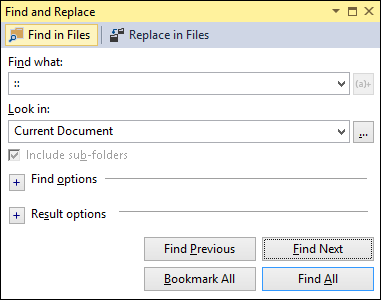
Visual Commander v1.2.1 extends the macro recording feature adding recording of the Find Next and Find Previous commands from the Find and Replace dialog in Visual Studio 2012/2013:

Find and Replace dialog in Visual Studio 2013

Find and Replace dialog in Visual Studio 2013

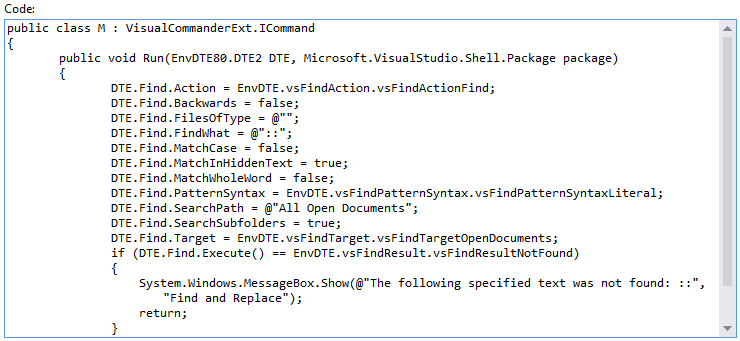
The recorded code sets all Find options, performs search and verifies that the text is found:

A recorded find command

A recorded find command

Download the installer.

Posted in Vlasov Studio tools | Tagged , , | Leave a comment

Productivity Power Tools 2013 released

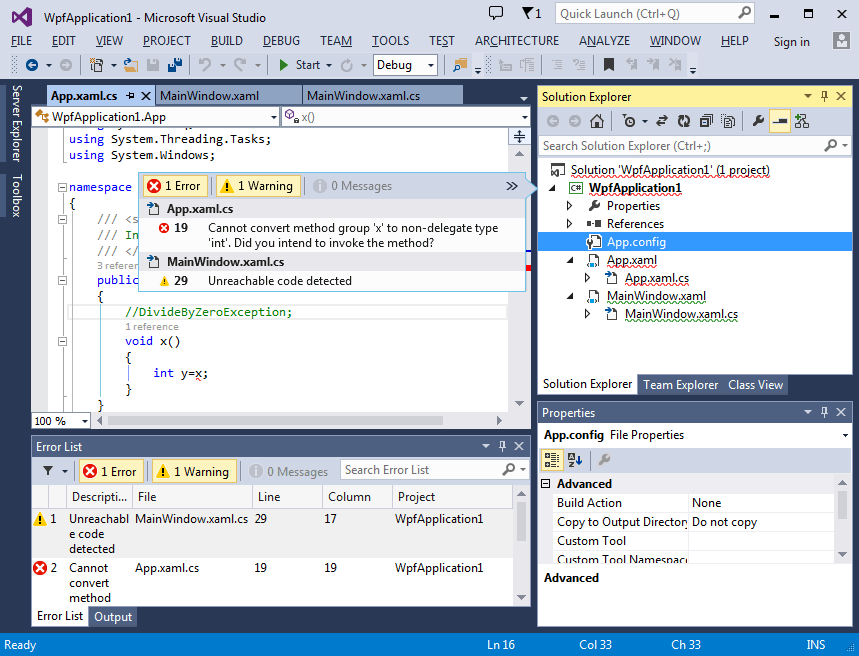
Microsoft has updated their popular extensions pack Productivity Power Tools for Visual Studio 2013. One interesting new feature they have added is Solution Explorer Errors. It shows error, warning, and message squiggles in the Solution Explorer window and hovering over a squiggle displays a popup filtered to the selected file or project with the ability to go to the corresponding problematic file line:

Solution Explorer Errors in Visual Studio 2013

Solution Explorer Errors in Visual Studio 2013

See 10 minutes video describing all 11 new features. Read detailed breakdown for all features and download the tools.

Posted in Reviews | Tagged , | Leave a comment