WoVS Quick Add Reference extension for Visual Studio 2010

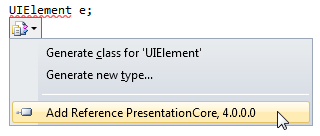
Quick Add Reference extension by Clarius Consulting lets you quickly add a missing reference for a type in C# code. When you use a new type and Visual Studio 2010 asks are you missing an assembly reference, in the correction options popup menu you now have the item to add the reference:

Add reference menu item in Visual Studio 2010 correction options popup menu

Add reference menu item in Visual Studio 2010 correction options popup menu

Selecting the Add Reference menu item adds the reference and adds the necessary using statement:

PresentationCore assembly reference and using System.Windows statement added by the Quick Add Reference extension

PresentationCore assembly reference and using System.Windows statement added by the Quick Add Reference extension

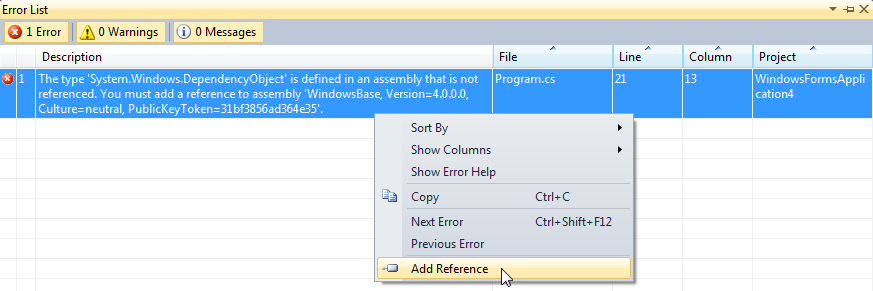
To open the correction options popup menu in Visual Studio 2010 you can hover the mouse over the help button or press Ctrl + . (Ctrl and dot). The same add reference menu item is available in the Error List tool window for the assembly not referenced error:

Add reference menu item in the build error description context menu

Add reference menu item in the build error description context menu

The Quick Add Reference extension learns about types and corresponding assemblies as you add them using the standard Add Reference dialog. Once you’ve added an assembly manually, Quick Add Reference remembers it and in the future will offer you an option to add it via the popup menu.

The free Quick Add Reference extension supports only Visual Studio 2010 and C# language. You can download it from the Visual Studio Gallery.


Organize Visual Studio tabs with Tabs Studio add-in

Posted in Reviews | Tagged , | 3 Comments

Find in Solution Explorer extension for Visual Studio 2010 and Visual Studio 11

Find in Solution Explorer extension by Sam Harwell lets you quickly locate the open document in Solution Explorer. It adds the Find In Solution Explorer tab context menu command that selects the current document in Solution Explorer:

Find In Solution Explorer tab context menu command in Visual Studio 2010

Find In Solution Explorer tab context menu command in Visual Studio 2010

This functionality is a part of several commercial add-ins like ReSharper (ReSharper | Tools | Locate in Solution Explorer menu command) and Tabs Studio (Sync document with Solution Explorer tab context menu command), but Find in Solution Explorer is free and provides exactly what is needed – no more and no less.

The Find in Solution Explorer extension support Visual Studio 2010 and Visual Studio 11. The installer can be downloaded from Visual Studio Gallery.

Posted in Reviews | Tagged , , | Leave a comment

VSCalm extension for Visual Studio 11 Beta

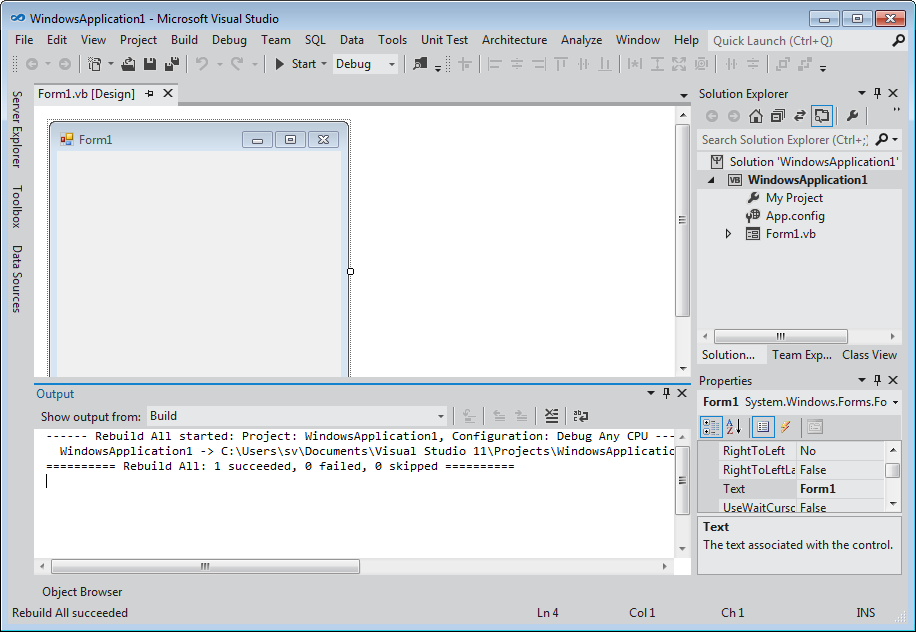
VSCalm extension by Jeremy Iverson restores standard tool window titles format in VS 11 Beta IDE. It changes the ALL CAPS letters to normal title case and removes :::colon-like::: gripper bars:

Original Visual Studio 11 Beta IDE

Original Visual Studio 11 Beta IDE


Modified tool window titles

Modified tool window titles

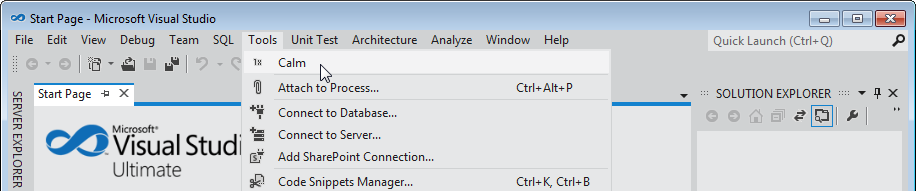
Remove “ALL CAPS” is the #2 request for Visual Studio IDE on the UserVoice Visual Studio forum (#1 is the “Add some color to Visual Studio 11 Beta”). Most probably Visual Studio 11 RC will fix this problem, but for now you can use VSCalm. Installation of VSCalm adds the Calm command to the Visual Studio Tools menu:

The Calm command in the Visual Studio Tools menu

The Calm command in the Visual Studio Tools menu

To modify titles you need to execute this command each time you start Visual Studio. I think it will be more convenient to apply title modifications automatically on Visual Studio startup without any additional commands.

VSCalm is a free open-source extension for Visual Studio 11. You can download the installer from Visual Studio Gallery. Source code is available on github.


Organize Visual Studio tabs with Tabs Studio add-in

Posted in Reviews | Tagged , | 5 Comments

Instant Feature Builder extension for Visual Studio 2010

Instant Feature Builder extension by Michael Lehman lets you package documentation, source code and interaction logic to run inside Visual Studio. To see how an end product may look like, you can install one of the several guides that use the Feature Builder engine: MVVM Training, Hands On Lab: Introduction to Windows Workflow Foundation (WF4), WPF Simple Application Walkthrough.

Let’s look at the WF4 Hands On Lab package. First of all, it’s a standard vsix package that is installed as a standard Visual Studio 2010 extension. After the installation you need to create a new project from a Hands On Lab exercise template:

The new project dialog for a Hands On Lab exercise

The new project dialog for a Hands On Lab exercise

When the new project is created, you get the packaged documentation, source code and interaction logic:

Hands On Lab content in Visual Studio 2010

Hands On Lab content in Visual Studio 2010

The Guidance Workflow Explorer window displays and tracks your progress on lab exercises, the Guidance Browser window contains instructions and helpful hyperlinks that open documents, web sites, files in the solution, Visual Studio tool windows and can execute Visual Studio commands like build and run a project, Solution Explorer displays source code prepared for the exercise.

Note that the guides mentioned above were produced using the more complex Feature Builder Power Tool. Instant Feature Builder uses the same Feature Extension Runtime, but don’t support adding custom menu commands to Visual Studio and don’t control workflow between parts of documentation. Advantages of Instant Feature Builder are prebuild hyperlinks to open a file or run a Visual Studio command and easy documentation publishing just dragging documents to a folder in Solution Explorer. I think Instant Feature Builder is significantly easier to use and covers all essential functionality for typical guide publishing.

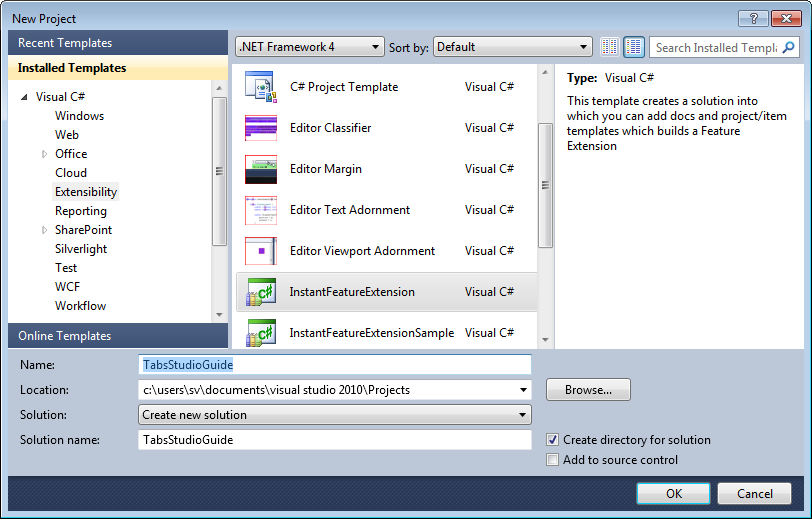
To try Instant Feature Builder I created a tiny guide for my Tabs Studio add-in. Note that after installing Instant Feature Builder you also need to install Visual Studio 2010 SP1 SDK. Create a new project from the InstantFeatureExtension template, the project name will be the name of your extension:

The new project dialog for Tabs Studio Guide

The new project dialog for Tabs Studio Guide

To add a sample project to your guide, open a new Visual Studio instance, create a new C#, Windows, WPF Application project and then export it as a template using the FileExport Template… command. The Template Name parameter is very important as by this name your users will need to locate the template in the New Project dialog to instantiate the guide. Uncheck the Automatically import the template into Visual Studio option:

Export Template Wizard for a sample project

Export Template Wizard for a sample project

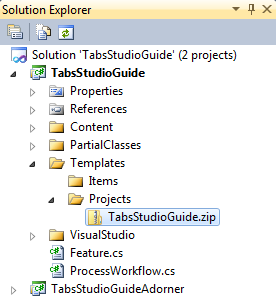
Once created, drag TabsStudioGuide.zip to the TemplatesProjects folder in Solution Explorer of your guide solution:

A template project in the guide solution

A template project in the guide solution

For documentation you can use the mht file format and edit it with Microsoft Word 2010. You can use images and reach text formatting as usual:

mht file editing in Microsoft Word 2010

mht file editing in Microsoft Word 2010

Instant Feature Builder conveniently creates the sample Overview.mht file in the ContentProcessGuidance folder. This file contains sample hyperlinks to open a file and run a Visual Studio command. For your guide you can copy these hyperlinks and modify text and target in Word to open your files and run your commands. Once documentation files are ready, drag them to the ContentProcessGuidance folder:

Documentation files in the guide solution

Documentation files in the guide solution

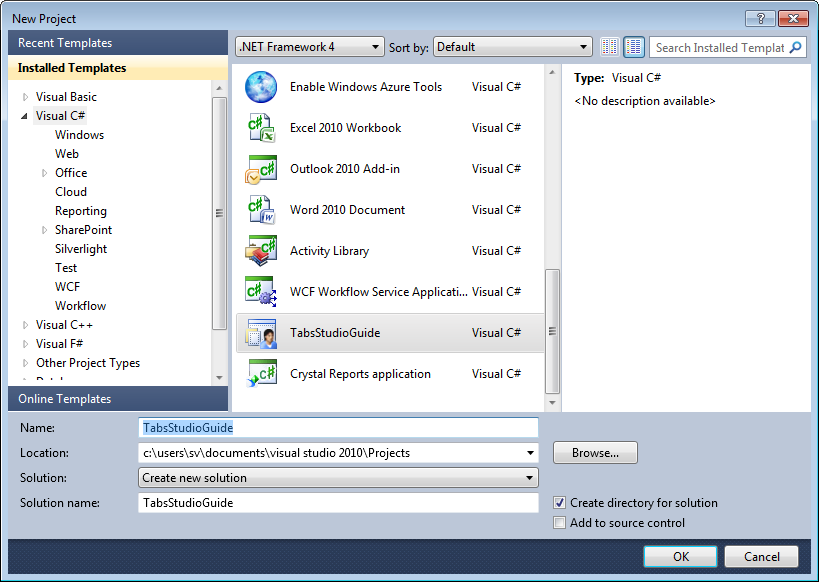
That’s all. Build your solution and publish the resulting TabsStudioGuide\bin\Debug\TabsStudioGuide.vsix on Visual Studio Gallery or on your own site. When another developer installs your extension, he will create a new project from your template and the guide with documentation, source code and helper links will be ready for him to learn:

The new project dialog to open the Tabs Studio Guide

The new project dialog to open the Tabs Studio Guide


Tabs Studio Guide opened in Visual Studio 2010

Tabs Studio Guide opened in Visual Studio 2010


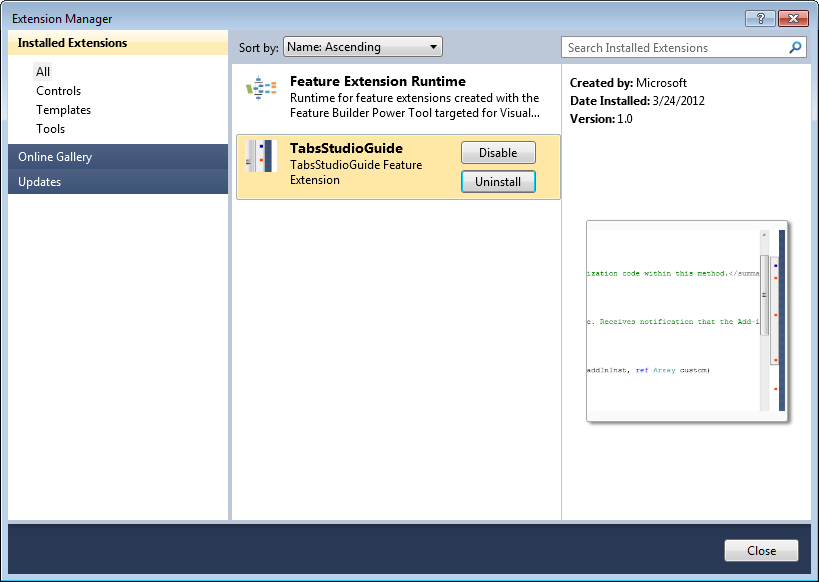
Extension Manager with the TabsStudioGuide extension installed

Extension Manager with the TabsStudioGuide extension installed

Instant Feature Builder is a free open source extension for Visual Studio 2010. You can download the installer and source code from CodePlex.


Organize Visual Studio tabs with Tabs Studio add-in

Posted in Reviews | Tagged , | Leave a comment

EventHandler Naming extension for Visual Studio 2010

EventHandler Naming extension by Einar Egilsson lets you customize the name format for event handlers automatically generated by Visual Studio 2010.

When you subscribe to a control event in the C# Windows Forms designer, Visual Studio generates a method for you in the button1_Click name format. It is hard to imagine a coding standard that accepts this naming convention. EventHandler Naming lets you change this, for example, to OnButton1Click.

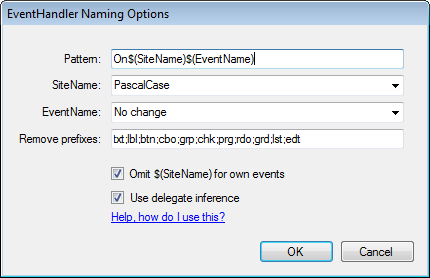
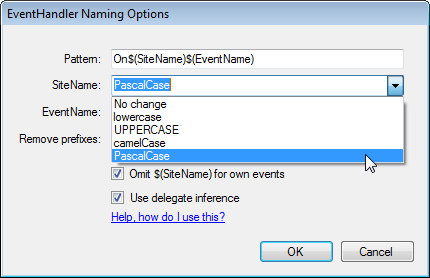
In EventHandler Naming options, accessible from the ToolsEvent Handler Naming menu item, you can customize the name pattern and case for the site/event names:

EventHandler Naming Options dialog

EventHandler Naming Options dialog


Site and event name case options

Site and event name case options

If you use type prefixes for your controls like lbl or btn, EventHandler Naming can remove them from a handler name. For form event handlers like OnForm1Load, EventHandler Naming can remove the form name and generate just OnLoad if you check the Omit $(SiteName) for own events option.

Functionality described above works for Windows Forms and Web Forms designers in C#, Visual Basic and C++/CLI projects. The WPF/XAML designer is not supported because it lacks needed extensibility points.

There is one more place when Visual Studio generates event handlers for you. If you are manually subscribing for an event in C# and type, for example, button1.DragDrop +=, Visual Studio prompts you to press TAB to generate an event handler method. EventHandler Naming supports this scenario as well. Plus, if you check the Use delegate inference option, instead of button1.DragDrop += new DragEventHandler(OnButton1DragDrop); more shorter code will be generated: button1.DragDrop += OnButton1DragDrop;.

EventHandler Naming is a free extension for Visual Studio 2010. You can download it from Visual Studio Gallery. Source code is available on GitHub.

Posted in Reviews | Tagged , | Leave a comment

NCrunch continuous testing Visual Studio add-in

NCrunch by Remco Mulder intelligently executes your .NET unit tests in background and displays test results in-line with your code in the Visual Studio editor. It saves you time to run tests manually and wait for their execution. It also gives you almost immediate feedback on code correctness as you type.

NCrunch fully supports most popular .NET unit testing frameworks like NUnit and MS Test. After the installation all you have to do is enable it for your solution via the NCrunch top level menu in Visual Studio. NCrunch will quickly execute your tests in background and display test results in-line with both tests and implementation code:

Passed test results in the Visual Studio 2010 editor

Passed test results in the Visual Studio 2010 editor

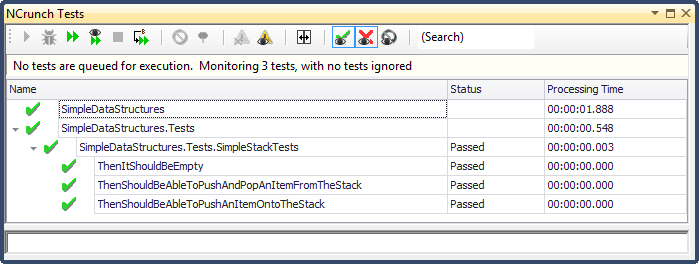
The current tests status is also displayed in the NCrunch Tests tool window:

NCrunch Tests tool window with the current tests status

NCrunch Tests tool window with the current tests status

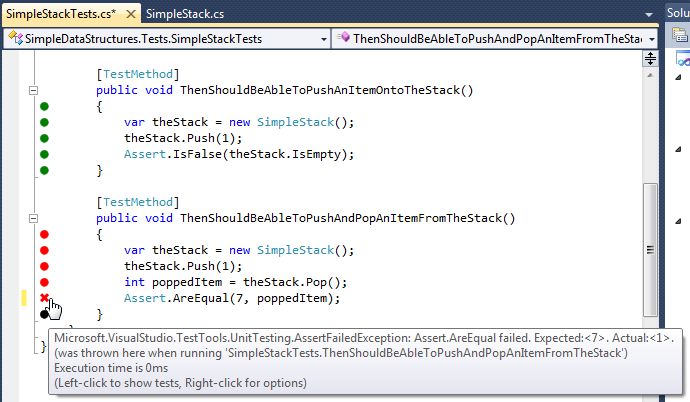
The interesting part begins when you create a new test or change existing code. Just as you type, without explicitly saving your changes, NCrunch builds your code and re-runs tests. Designed with big projects in mind, NCrunch intelligently analyzes build dependencies, prioritizes tests execution order and uses asynchronous processes, additional processing cores, thread/process prioritization to minimize effects on Visual Studio IDE performance. Any test failures are immediately shown in the Visual Studio editor. Hovering over the error marker displays exception text:

Assertion failed exception description

Assertion failed exception description

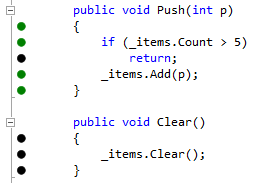
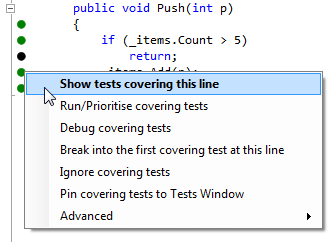
NCrunch also collects code coverage information and marks lines not executed by unit tests by black dots. Code coverage also enables you to navigate to any covering tests from any line of code:

Black dots for lines not covered by tests

Black dots for lines not covered by tests


Context menu commands for a line of code covered by tests

Context menu commands for a line of code covered by tests

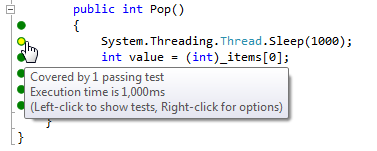
Plus NCrunch measures tests execution time. For each line you can see its execution time and particularly slow lines are specially colored:

Execution time of the line of code

Execution time of the line of code

NCrunch is currently free of charge, supports Visual Studio 2008/2010/11 and NUnit/MS Test/Xunit/MbUnit/MSpec unit testing frameworks. You can download the latest installer from the official home page.


Organize Visual Studio tabs with Tabs Studio add-in

Posted in Reviews | Tagged , , , | 1 Comment

XAML Regions extension for Visual Studio 2010

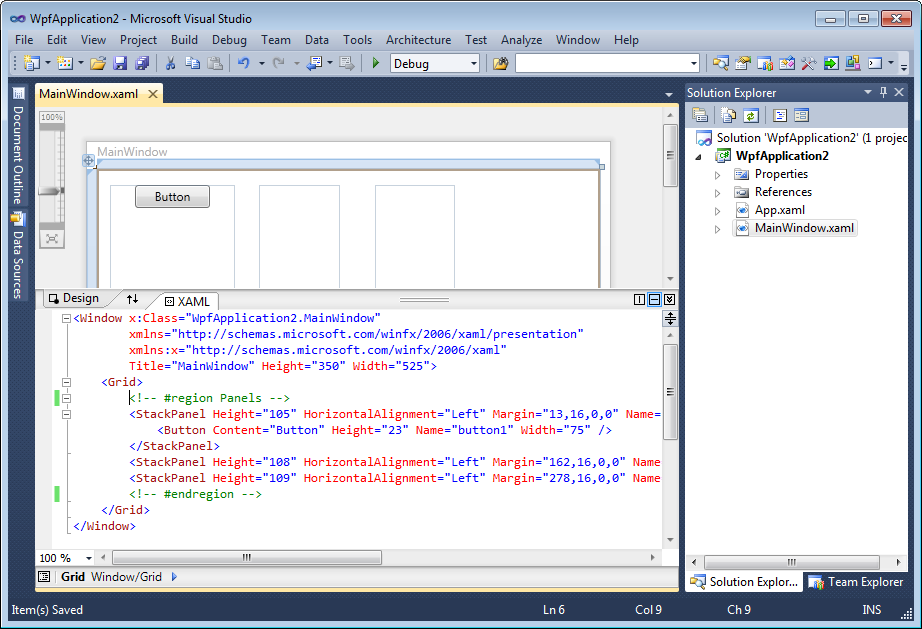
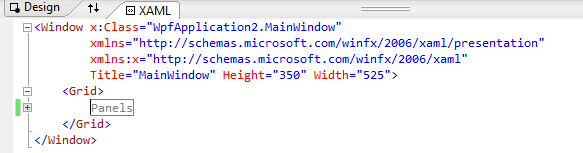
XAML Regions extension by Jacob Johnston helps you organize xaml code by grouping relevant elements and speeds up navigation by collapsing less important blocks of markup. You can create a region with two comment lines containing region/endregion keywords and then collapse and expand it as needed:

Region definition in comments for XAML editor in Visual Studio 2010

Region definition in comments for XAML editor in Visual Studio 2010


Collapsed region in XAML editor

Collapsed region in XAML editor

You can use any convention for the region keyword in a comment (region, Region, #Region), same with endregion (endregion, End Region, #EndRegion). The text after the region keyword forms visible region description.

The only suggestion I have for XAML Regions is to add a context menu command to the XAML editor to surround selection with a region (or add two commands to create and delete the region).

You can download the free XAML Regions extension for Visual Studio 2010 from Visual Studio Gallery.


Organize Visual Studio tabs with Tabs Studio add-in

Posted in Reviews | Tagged , | Leave a comment

SharpComments extension for Visual Studio 2010

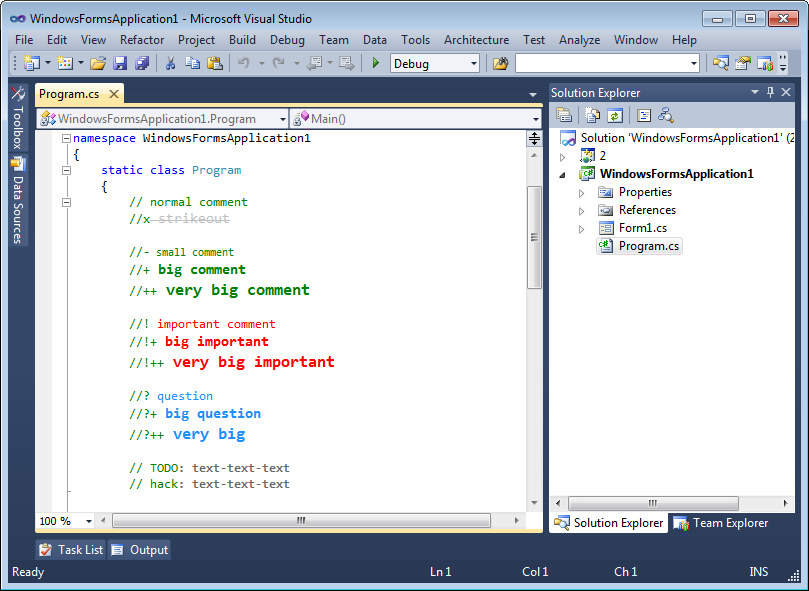
SharpComments extension by Vitaly Maykovsky lets you change color and font size for individual comments in C# code with a prefix like //! or //+:

Different comment styles in Visual Studio 2010

Different comment styles in Visual Studio 2010

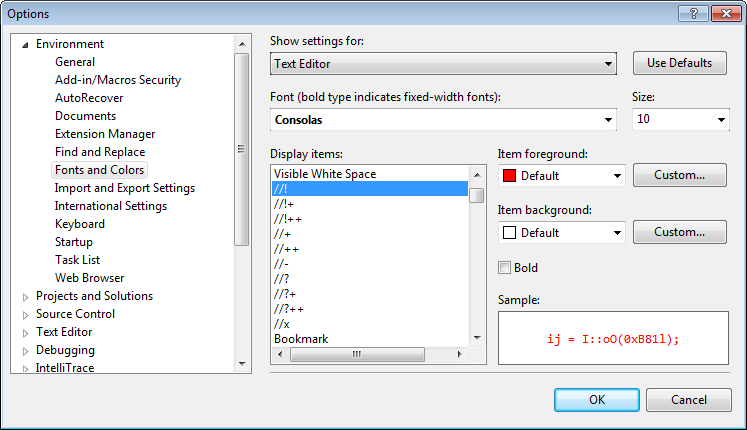
Comment colors are customizable in Visual Studio options:

Comment color customization in Visual Studio options

Comment color customization in Visual Studio options

SharpComments is a free extension, supports only C# and Visual Studio 2010. You can download it from Visual Studio Gallery.


Organize Visual Studio tabs with Tabs Studio add-in

Posted in Reviews | Tagged , | 7 Comments

Notify Property Weaver extension for Visual Studio 2010 and Visual Studio 11

Notify Property Weaver extension by Simon Cropp automatically generates PropertyChanged notifications for your classes that implement INotifyPropertyChanged. With this extension you only need to declare properties, their implementation providing notifications on changes will be generated automatically in the binary assembly as a post build step.

A typical class with properties data changing over time can implement the INotifyPropertyChanged interface. When you bind such object, for example, to a WPF control, the control will display new content immediately after it become available. To illustrate this approach, let’s create a very simple application showing current time:
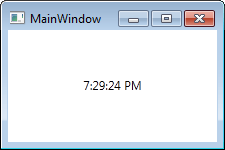
Simple clock application

Simple clock application

In a new WPF project, add a label to the main window:

<Label Content="{Binding Path=Time}" Height="28" HorizontalAlignment="Center" Name="label1" VerticalAlignment="Center" />

Set its DataContext to a Clock object:

public partial class MainWindow : Window
{
    public MainWindow()
    {
        clock = new Clock();

        InitializeComponent();

        label1.DataContext = clock;
    }

    private Clock clock;
} 

Implement the Clock class with the dynamically updated Time property:

class Clock : System.ComponentModel.INotifyPropertyChanged
{
    public event System.ComponentModel.PropertyChangedEventHandler PropertyChanged;

    public Clock()
    {
        timer = new System.Windows.Threading.DispatcherTimer();
        timer.Interval = System.TimeSpan.FromSeconds(1);
        timer.Tick += new System.EventHandler(TimerTick);
        timer.Start();
    }

    public string Time
    {
        get
        {
            return time;
        }
        set
        {
            time = value;
            if (PropertyChanged != null)
                PropertyChanged(this, new System.ComponentModel.PropertyChangedEventArgs("Time"));
        }
    }

    private void TimerTick(object sender, System.EventArgs e)
    {
        Time = System.DateTime.Now.ToLongTimeString();
    }

    private System.Windows.Threading.DispatcherTimer timer;
    private String time;
}

Now, if we had Notify Property Weaver installed, our Clock implementation could be simpler. Without definition for the Time property and without declaration of the time field:

class Clock : System.ComponentModel.INotifyPropertyChanged
{
    public event System.ComponentModel.PropertyChangedEventHandler PropertyChanged;

    public Clock() […]

    public string Time { get; set; }

    private void TimerTick(object sender, System.EventArgs e) […]

    private System.Windows.Threading.DispatcherTimer timer;
}

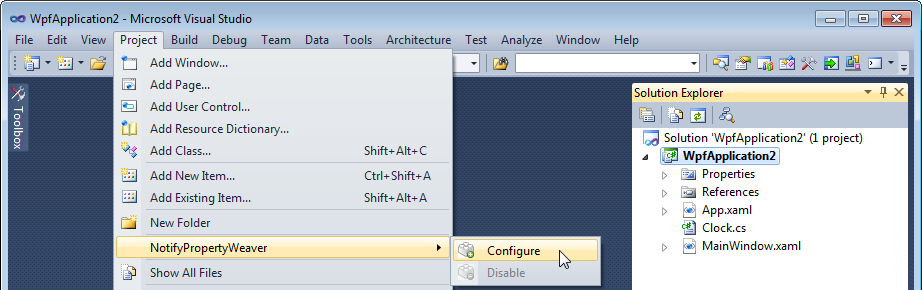
Of course, more dynamic properties you have, more code is saved. After you install Notify Property Weaver, you need to enable it for your project. Select the project in Solution Explorer and open Project – NotifyPropertyWeaver – Configure:
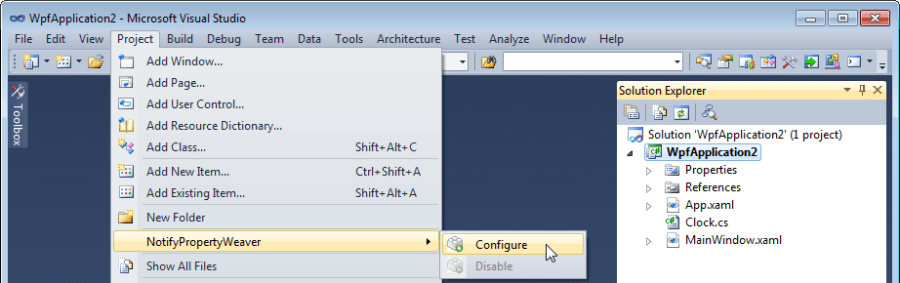
Notify Property Weaver configuration menu
Notify Property Weaver configuration menu


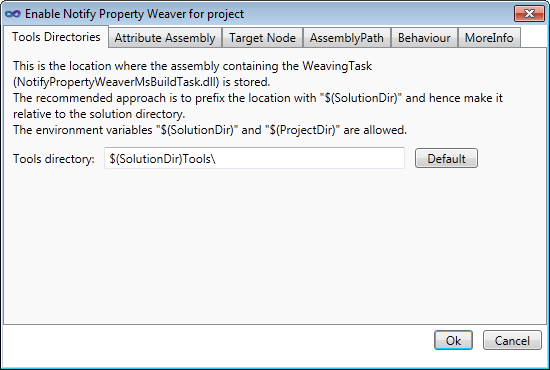
Notify Property Weaver configuration dialog

Notify Property Weaver configuration dialog

When you press OK in the configuration dialog, your project will be updated and after the next build omitted ProjectChanged notifications will be added to your assembly. You can verify it by running the application or by analyzing the disassembled code produced, for example, by dotPeek:

internal class Clock : INotifyPropertyChanged
{
private PropertyChangedEventHandler PropertyChanged;
private DispatcherTimer timer;

public string Time
{
    get
    {
    return this.Time__BackingField;
    }
    set
    {
    if (string.Equals(this.Time__BackingField, value))
        return;
    this.Time__BackingField = value;
    this.OnPropertyChanged("Time");
    }
}

public event PropertyChangedEventHandler PropertyChanged […]

public Clock() […]

private void TimerTick(object sender, EventArgs e) […]

public virtual void OnPropertyChanged(string propertyName)
{
    PropertyChangedEventHandler changedEventHandler = this.PropertyChanged;
    if (changedEventHandler == null)
    return;
    changedEventHandler((object) this, new PropertyChangedEventArgs(propertyName));
}
}

If you have a property that depends on other properties (e.g. DateTime depending on Time), Notify Property Weaver detects it and includes change notifications for this compound property as well:

public string DateTime { get {return "Today " + Time;} }
public string Time
{
    get
    {
    return this.Time__BackingField;
    }
    set
    {
    if (string.Equals(this.Time__BackingField, value))
        return;
    this.Time__BackingField = value;
    this.OnPropertyChanged("DateTime");
    this.OnPropertyChanged("Time");
    }
}

On the Behaviour tab of the configuration dialog you can adjust general options for the tool:
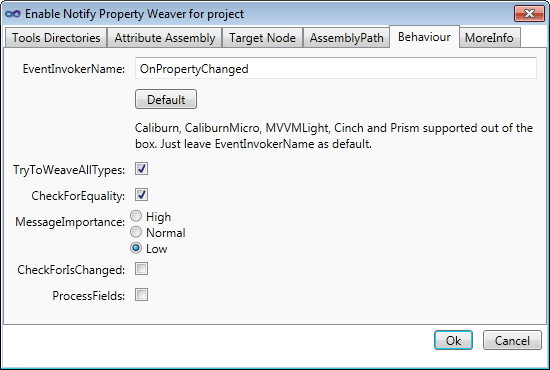
Notify Property Weaver behavior options

Notify Property Weaver behavior options

For example, if you enable the ProcessFields options, in your code you can change a property declaration to a shorter field declaration, preserving the functionality:

public string Time;

The free Notify Property Weaver extension supports .Net 3.5/4.0, Silverlight 3/4/5 and Windows Phone 7. Integrates with Visual Studio 2010 and Visual Studio 11. You can download the installer from Visual Studio Gallery. Source code for the extension is available on Google Code.




Organize Visual Studio tabs with Tabs Studio add-in

Posted in Reviews | Tagged , , | Leave a comment

Rename Visual Studio Window Title extension for Visual Studio 2010

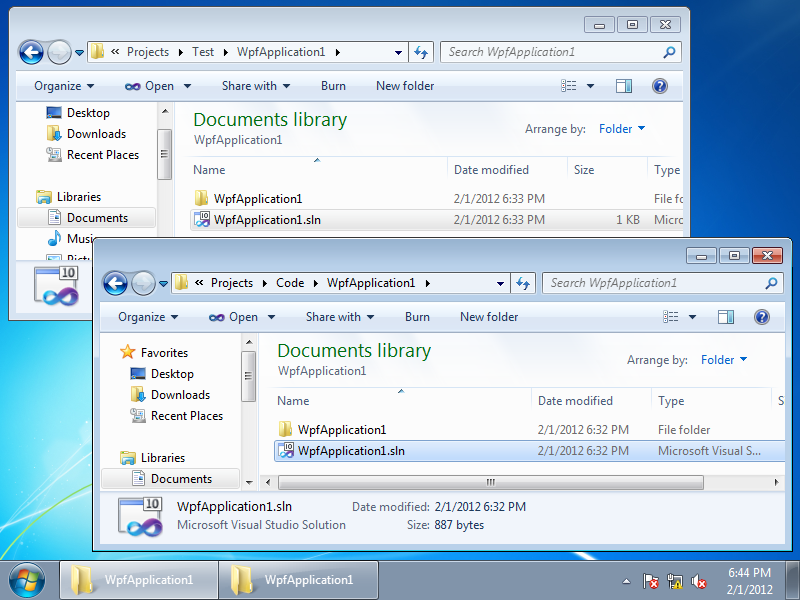
Rename Visual Studio Window Title extension by Erwin Mayer lets you add solution folder name to Visual Studio title. It can be used to distinguish solutions with the same name in different folders or branches. For example, if you have WpfApplication1.sln in the Code folder and tests for this application in the Test folder, when you open both solutions in Visual Studio they will have exactly same titles:
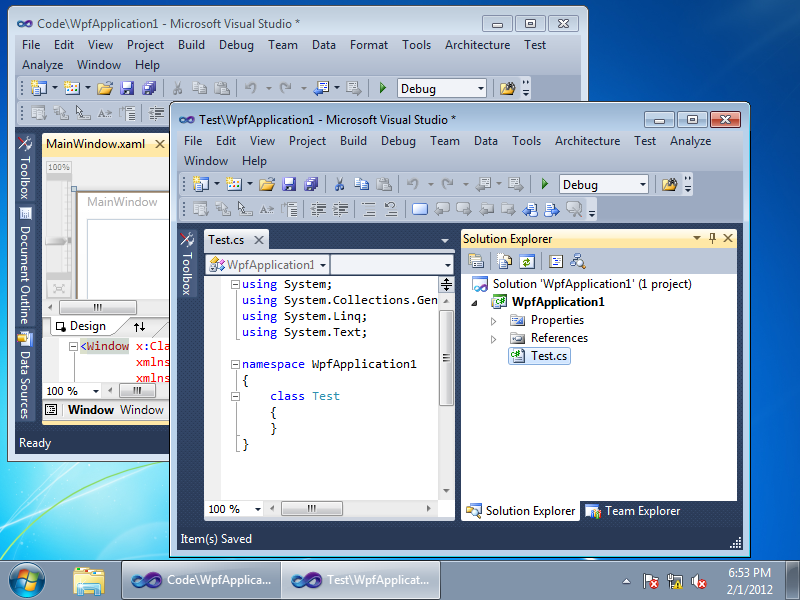
Two WpfApplication1 solutions in different folders

Two WpfApplication1 solutions in different folders


Two WpfApplication1 solutions in Visual Studio

Two WpfApplication1 solutions in Visual Studio


Looking at Windows taskbar or at window titles you can’t tell where is the code and where are the tests. With the Rename Visual Studio Window Title extension the difference is obvious:
Two WpfApplication1 solutions with folder names

Two WpfApplication1 solutions with folder names


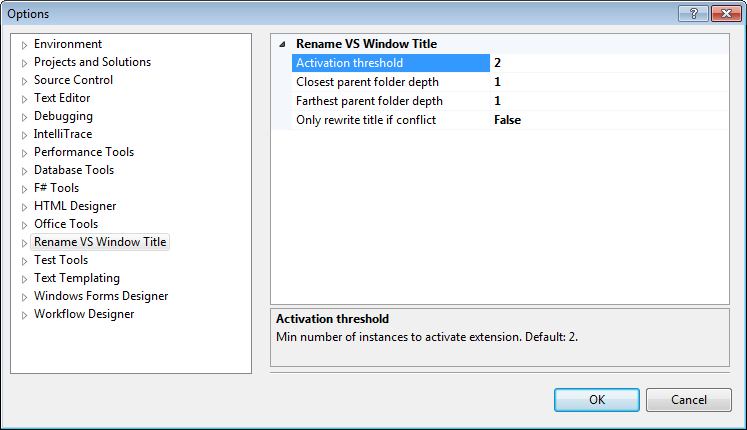
You can configure the extension for your needs and your folder structure from the ToolsOptionsRename VS Window Title section:
Rename Visual Studio Window Title options

Rename Visual Studio Window Title options


Activation threshold is the minimum number of Visual Studio instances running to apply the title rename. Closest and Farthest parent folder depths let you select the part of the folder path to add. Only rewrite title if conflict can auto detect and disambiguate instances with the same title, but it doesn’t work at the moment.

You can download the free Rename Visual Studio Window Title extension for Visual Studio 2010 from Visual Studio Gallery. You can get source code for the extension from Codeplex.


Organize Visual Studio tabs with Tabs Studio add-in

Posted in Reviews | Tagged , | 3 Comments