Publishing Visual Studio extensions with Visual Studio 2010 and Visual Studio 11 support

Out of the box Visual Studio 2010 supports extensions development only for VS 2010 and Visual Studio 11 supports extensions development only for VS 11. If your Visual Studio extension supports both VS 2010/VS 11 and doesn’t contain much version specific code you may want to develop it in Visual Studio 2010 and just specify that it supports Visual Studio 11 as well.

Normally you specify what Visual Studio versions and editions your extension supports in the Select Visual Studio Version and Edition dialog available in the manifest designer:

Manifest designer in Visual Studio 2010

Manifest designer in Visual Studio 2010


Select Visual Studio Version and Edition dialog in Visual Studio 2010

Select Visual Studio Version and Edition dialog in Visual Studio 2010


But this dialog in Visual Studio 2010 doesn’t let you specify Visual Studio 11 support. You have to modify the manifest manually. Open source.extension.vsixmanifest in the code editor by selecting ViewCode from the designer view and add the Visual Studio 11.0 tag copying the existing Visual Studio 10.0 tag:

<VisualStudio Version="11.0">
  <Edition>Pro</Edition>
</VisualStudio>
Visual Studio extension manifest with both Visual Studio 2010 and Visual Studio 11 support

Visual Studio extension manifest with both Visual Studio 2010 and Visual Studio 11 support

Specifying only the Pro edition means that the Premium and Ultimate editions are also supported. Additionally you can increase the MaxVersion attribute of SupportedFrameworkRuntimeEdition from 4.0 to 4.5. For Visual Studio 11 extensions default framework version is 4.5, but extensions with specified max version 4.0 work in VS 11 just fine in practice.

That’s all. Your extension can now be installed in both Visual Studio 2010 and Visual Studio 11.


Organize Visual Studio tabs with Tabs Studio add-in

Posted in Uncategorized | Tagged , , | Leave a comment

Favorite Documents v1.3 released

Favorite Documents is a free extension that lets you create links to frequently used code files and then quickly open them as a group or individually from the Favorites menu in Visual Studio 2010.

Favorite Documents v1.3 adds the ability to open a solution in a new Visual Studio instance holding the Ctrl key.

Download the installer.

Posted in Vlasov Studio tools | Tagged , | Leave a comment

Shark Compiler Control for Visual Studio review

Shark Compiler Control by Sören Kewenig speeds up C++ compilation in Visual Studio 2010, 2008 and 2005 using multiple processor cores. It works similar to the /MP switch, but with less restrictions and more convenient control.

Visual Studio has built-in capabilities to speed up compilation using multiple cores. First of all it the maximum number of parallel project builds options:
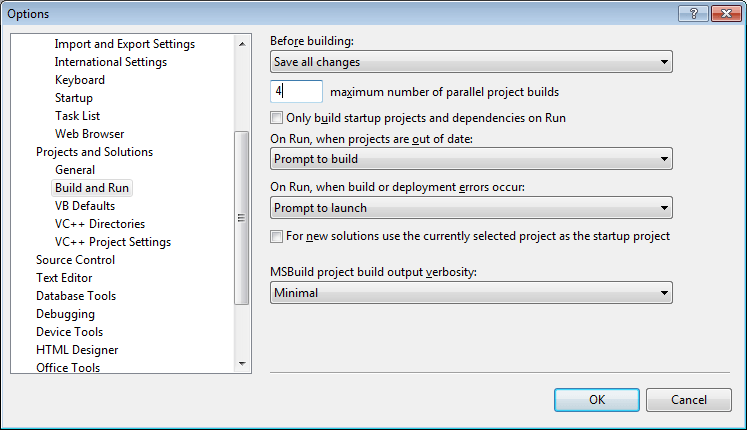
The maximum number of parallel project builds option

The maximum number of parallel project builds option

When you are building a solution with several projects, independent projects will be built on separate cores. When you have many independent projects, it gives you the best speed up as many .cpp files can be compiled in parallel plus linking of different projects can be run in parallel. On the other hand, if you are building just one project (common with usual incremental code changes) this option doesn’t help at all. To speed up compilation of files within one project you can add Visual Studio /MP C++ compiler option in project properties:
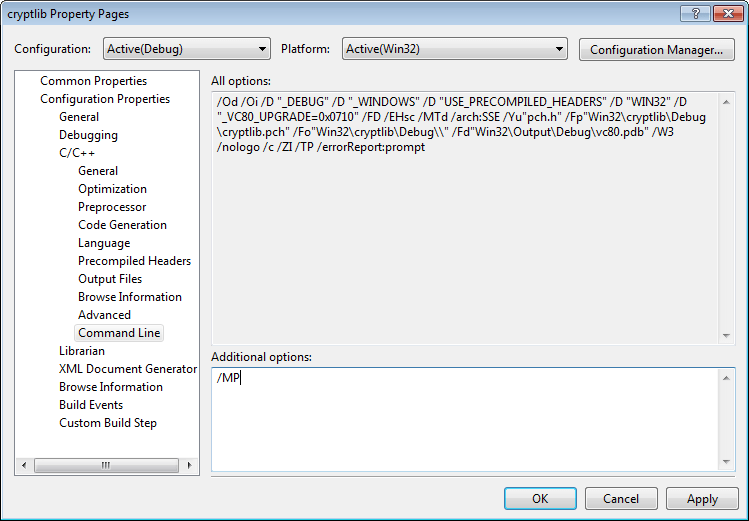
MP C++ compiler option

MP C++ compiler option

“The /MP option causes the compiler to create one or more copies of itself, each in a separate process. These copies simultaneously compile the source files. Consequently, the total time to build the source files can be significantly reduced.” /MP is incompatible with several other options including /Gm that enables an incremental rebuild.

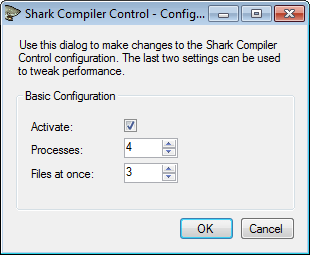
Shark Compiler Control also enables parallel compilation within a single project. After the installation, you can enable and configure it in the main Visual Studio menu ToolsShark Compiler Control Configuration:

Shark Compiler Control Configuration

Shark Compiler Control Configuration

To test compilation speed up, I used a quad core machine with Windows 7 and Visual Studio 2008 SP1. As a test project I used cryptlib from Crypto++ Library – it consists of 125 .cpp files and doesn’t depend on external components.

With default settings this project compiles in 52 seconds. With the /MP option it compiles in 28 seconds. With Shark Compiler Control it compiles in 29 seconds. Almost 2x speed up from parallel compilation.

To test parallel projects compilation I created a solution with completely independent 4 copies of the cryptlib project. The Maximum number of parallel project builds parameter was set to 4. Solution rebuild with default settings took 62 seconds. With the /MP option – 76 seconds. With Shark Compiler Control – 70 seconds. In this case built-in parallel project compilation already improved performance by significant 3.35x and additional in-project parallelization led to overload.

To better understand how parallel compilation works we can use famous Process Monitor and its Process Tree tool. Process Tree shows when each process started, who started it and when the process ended all in combined timeline. For example, this is how default project rebuild looks like:
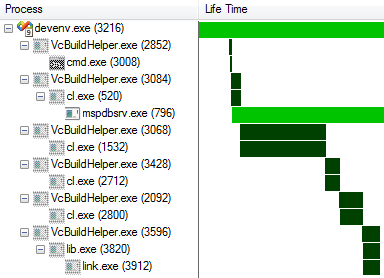
Default rebuild of 1 project

Default rebuild of 1 project

On this timeline we see a very short custom prebuild event involving cmd.exe, then precompiled headers compilation by first cl.exe, then 3 batches of other .cpp files compilation and finally linking. Note how everything is performed sequentially – no processes overlap (except devenv.exe and mspdbsrv.exe which are not interesting to us). It is not visible on this diagram, but each compilation and linking process is single threaded. Only one processor core is used and more cores don’t give any speed up in this case.

With the /MP option enabled, 3 batches of .cpp files compilation are now performed in parallel in 4 additional instances of cl.exe (giving 1.86x speed up):
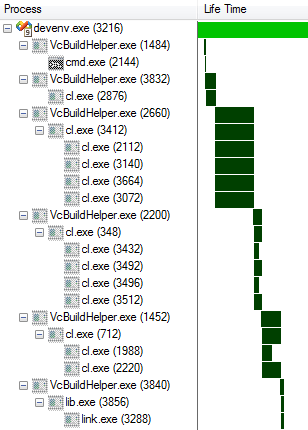
/MP rebuild of 1 project

/MP rebuild of 1 project

Shark Compiler Control substitutes cl.exe with its own module that calls the original compiler renamed to cl_msvcc.exe. Each cl_msvcc.exe compiles only 3 files before exiting as specified in default Shark Compiler Control options. This results in much more cl_msvcc.exe instances, but only 4 of them run in parallel, according to Shark Compiler Control options used:
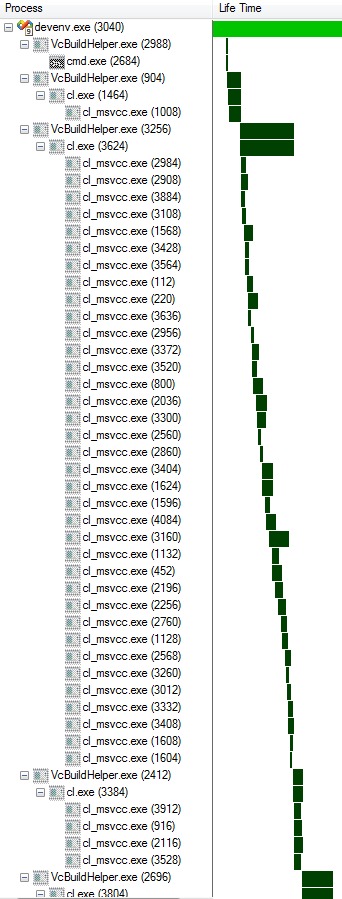
Shark Compiler Control rebuild of 1 project (partial timeline)

Shark Compiler Control rebuild of 1 project (partial timeline)

When rebuilding the test solution consisting of 4 independent projects, we see perfect parallelization of each project build step. All 4 prebuild tasks run in parallel, 4 precompiled header compilations run in parallel and other files compilation in each project run in parallel. Almost perfectly utilizing 4 available cores:
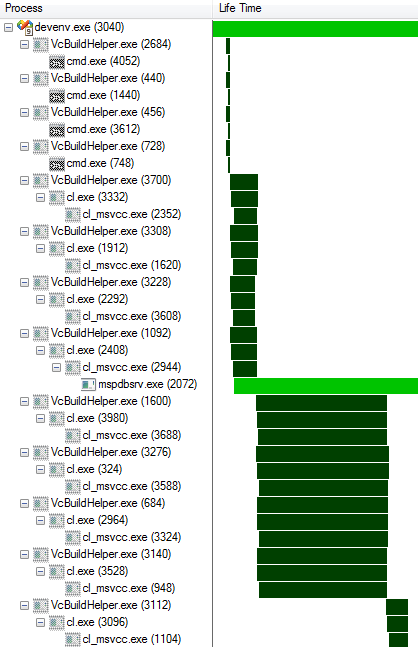
Default solution rebuild (partial timeline)

Default solution rebuild (partial timeline)

With the /MP option enabled, within each project 4 parallel compiler instances result in 16 parallel compilations overall, overloading 4 available cores:
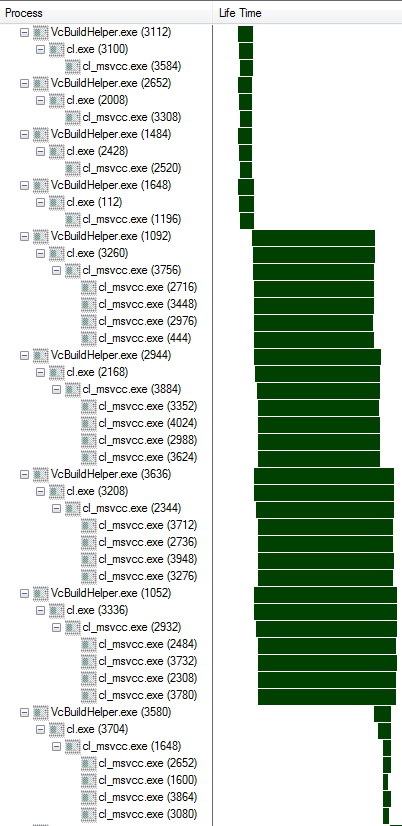
/MP solution rebuild (partial timeline)

/MP solution rebuild (partial timeline)

Same overload with Shark Compiler Control:
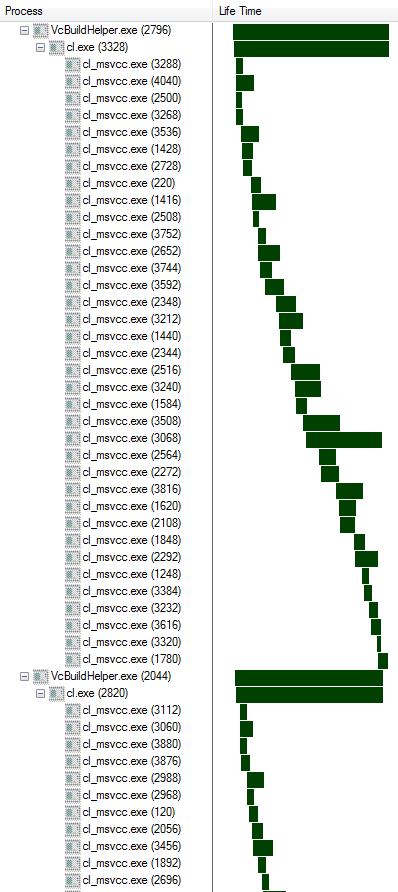
Shark Compiler Control solution rebuild (partial timeline)

Shark Compiler Control solution rebuild (partial timeline)

With the /MP option and Shark Compiler Control you can manually specify number of processes run in parallel within each project. Plus for Shark Compiler Control you can specify number of files to compile in one compiler run. I experimented with different values, but didn’t get a noticeable performance improvement. It will be much better if these parameters were automatically and dynamically adjusted by the tools themselves, depending on current load and available resources.

Shark Compiler Control enables you to quickly turn on parallel in-project compilation for your whole solution and compatible with all compiler switches. The /MP option is built-in and lets you configure each project individually, for example, you can enable it only for projects that don’t compile in parallel on solution rebuild. Either way you can’t ignore the opportunity to significantly speed up your C++ compilation utilizing multiple cores.

Shark Compiler Control is currently free to use with Visual Studio 2010, 2008 and 2005. You can download it from the official website.




Organize Visual Studio tabs with Tabs Studio add-in

Posted in Reviews | Tagged , , , | Leave a comment

ZenCoding extension for Visual Studio 2010 review

ZenCoding extension for Visual Studio 2010 speeds up HTML coding expanding short Zen commands into full-fledged HTML code. For example, to create a 2*3 table in HTML you type “table>(tr>td*3)*2” and press expand:

<table>
  <tr>
    <td></td>
    <td></td>
    <td></td>
  </tr>
  <tr>
    <td></td>
    <td></td>
    <td></td>
  </tr>
</table>

You can generate id and class properties with the CSS like syntax:

p#myid.myclass   ->
<p id='myid' class='myclass'></p>

You can even use the counter variable $ to number output elements:

ul>li.item$*2   ->
<ul>
  <li class='item1'></li>
  <li class='item2'></li>
</ul>

Zen Coding is supported for many editors (see the official zen-coding page). The Visual Studio 2010 extension was developed by Yngve B. Nilsen and described in details on his blog.

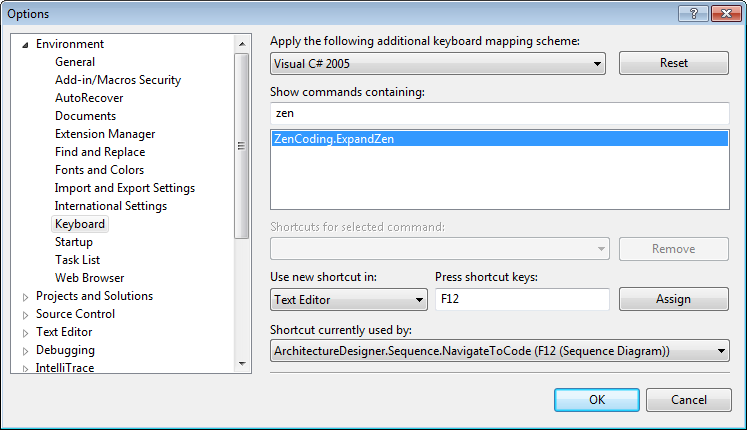
After the installation you will see the additional ZenCoding submenu in the main Visual Studio menu. You can generate a test paragraph by typing p and clicking ZenCoding – Expand Zen. For convenience it is highly recommended to assign a keyboard shortcut to this command:

Assign a keyboard shortcut to the ExpandZen command

Assign a keyboard shortcut to the ExpandZen command


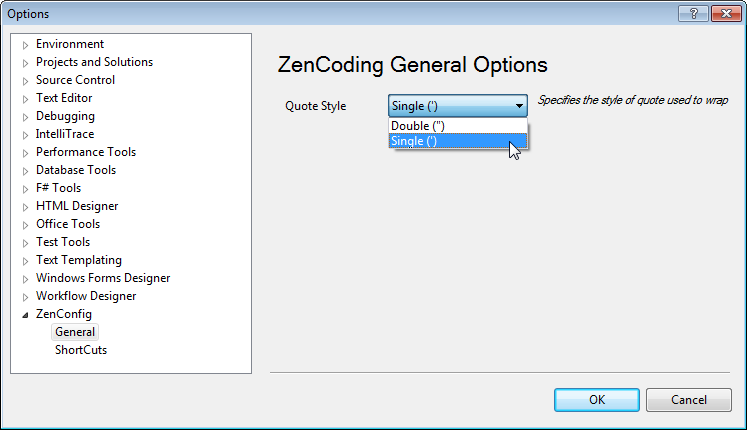
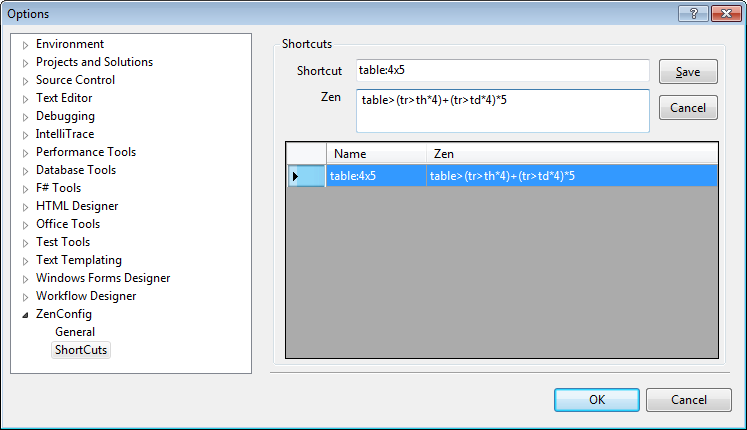
ZenCoding has its own options to customize the quote style and create custom shortcuts:
Quote style for attributes

Quote style for attributes


Custom shortcuts options

Custom shortcuts options


ZenCoding is a free extension for Visual Studio 2010. You can download it from Visual Studio Gallery.


Organize Visual Studio tabs with Tabs Studio add-in

Posted in Reviews | Tagged , | 2 Comments

Elastic Tabstops for Visual Studio 2010 review

Elastic Tabstops extension for Visual Studio 2010 automatically aligns columns of text in your source files:

Column blocks

Column blocks


The original idea of elastic tabstops was invented by Nick Gravgaard (see his explanation). He proposes first to use tabs as separators of columns of text like in tab separated table files. And second use special text editors that automatically align columns taking into account maximum text width in each column.

The Visual Studio 2010 extension was developed by Ramunas Geciauskas. After the installation, first of all ensure that in Visual Studio – Tools – Options – Text Editor – C# (or your preferred language) – Tabs – Tab is set to Keep tabs. Now use tabs to separate different columns of text and your code will be automatically aligned:

<tab>this.button1.Location<tab>=<tab>new System.Drawing.Point(113, 85);<tab>// Location
<tab>this.button1.Name<tab>=<tab>"button1";<tab>// Name
<tab>this.button1.Size<tab>=<tab>new System.Drawing.Size(75, 23);<tab>// Size

Automatically aligned code

Automatically aligned code


Elastic Tabstops is a free extension for Visual Studio 2010. You can download it from Visual Studio Gallery.


Organize Visual Studio tabs with Tabs Studio add-in

Posted in Reviews | Tagged , | Leave a comment

Visual Assist X review

Visual Assist X is a code refactoring and code navigation add-in for Visual Studio. For C++ developers like myself this is the best productivity booster. I started to use Visual Assist with Visual C++ 6 and up to Visual Studio 2010 it constantly helps me write new code faster and understand existing code better. VAX has its own C++ parsing engine that comparing to built-in Visual Studio IntelliSense for C++ is faster, more accurate, handles complex codebase like Boost and supports C++/CLI.

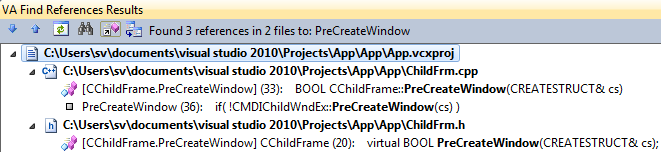
Goto Implementation in VAX is a better alternative to Go To Definition/Go To Declaration in VS. Find References for functions and variables in VAX provides more context than Find All References in VS:

VS Find All References Results

VS Find All References Results


VAX Find References Results

VAX Find References Results

VAX provides function and variable name autocompletion and even suggestions for known contexts. For example, when you are writing an assignment to a variable or passing a parameter to a function, required variable type is known and VAX offers local variables with matched type. When assigning to an enum variable VAX offers enum values. Configurable VA snippets provide templates for constructs like switch cases, for loops and also let you wrap selected code to try-catch and other blocks.

The Open File in Solution dialog lets you quickly type substring of a file name and open it not taking your hands off the keyboard:

Open File in Solution dialog

Open File in Solution dialog

The similar Find Symbol dialog lets you navigate to a constant, variable, function or class by its name:

Find Symbol dialog

Find Symbol dialog

The Find Previous by Context and Find Next by Context commands let you navigate to the previous/next variable or function usage in the current file. The Open Corresponding File command lets you switch between corresponding h and cpp files. The extended Paste command keeps clipboard history and lets you store several code fragments for copy and paste operations. Spelling errors and mistyped symbols are underlined as-you-type.

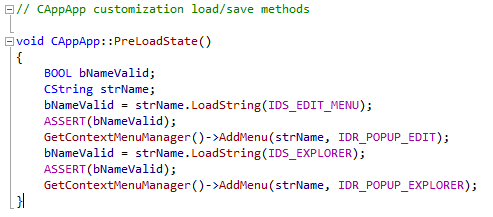
VAX provides enhanced syntax coloring for classes/typedefs, variables, macros and methods:

Syntax coloring

Syntax coloring

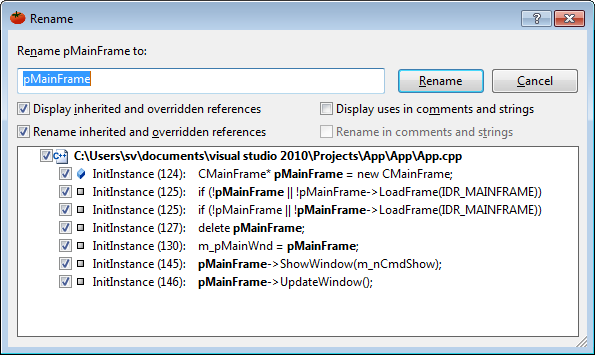
VAX supports several refactorings like change signature, encapsulate field, extract method etc. The two refactorings I use all the time are Add Include and Rename:

Rename refactoring dialog

Rename refactoring dialog

Visual Assist X is #2 in highest rated products on Visual Studio Gallery. VAX supports Visual Studio 11/2010/2008/2005/2003/2002/VC6 for C++/C#/VB/ASP/ASP.NET/HTML/XML/JavaScript/VBScript/XAML. Standard license costs $249 with $49 yearly renewal to the latest version. Home page: www.wholetomato.com.


Organize Visual Studio tabs with Tabs Studio add-in

Posted in Reviews | Tagged , , , , , | 1 Comment

Tabs Studio v2.5.5 released

Tabs Studio is a Visual Studio add-in empowering you to work comfortably with any number of open documents.

See what’s new in v2.5.5.

Download the installer.

Posted in Vlasov Studio tools | Tagged , , , | Leave a comment